WhatsApp Tutorials
WhatsApp Appointment Booking with Automatic Reminders
Let customers book appointments on WhatsApp themselves: set up services, working hours, capacity and holidays, send automatic reminders with one-tap reschedule, and share a booking QR code. With a 1-minute video walkthrough.
Padmesh Bhavsar · Founder, InboundSage · 4 November 2026 · 5 min read
Clinics, salons, coaches and consultants lose hours every week to booking calls: "Is 5 pm free?", "Can I move to tomorrow?". And no-shows cost even more, because a missed appointment is a slot nobody else could take.
With Appointments in InboundSage, customers book on WhatsApp themselves, at any hour, and reminders go out automatically. The video above sets it up in about a minute.
Step 1: Add a service
Open Appointments → Settings and add a service, for example "Discovery Call". Set:
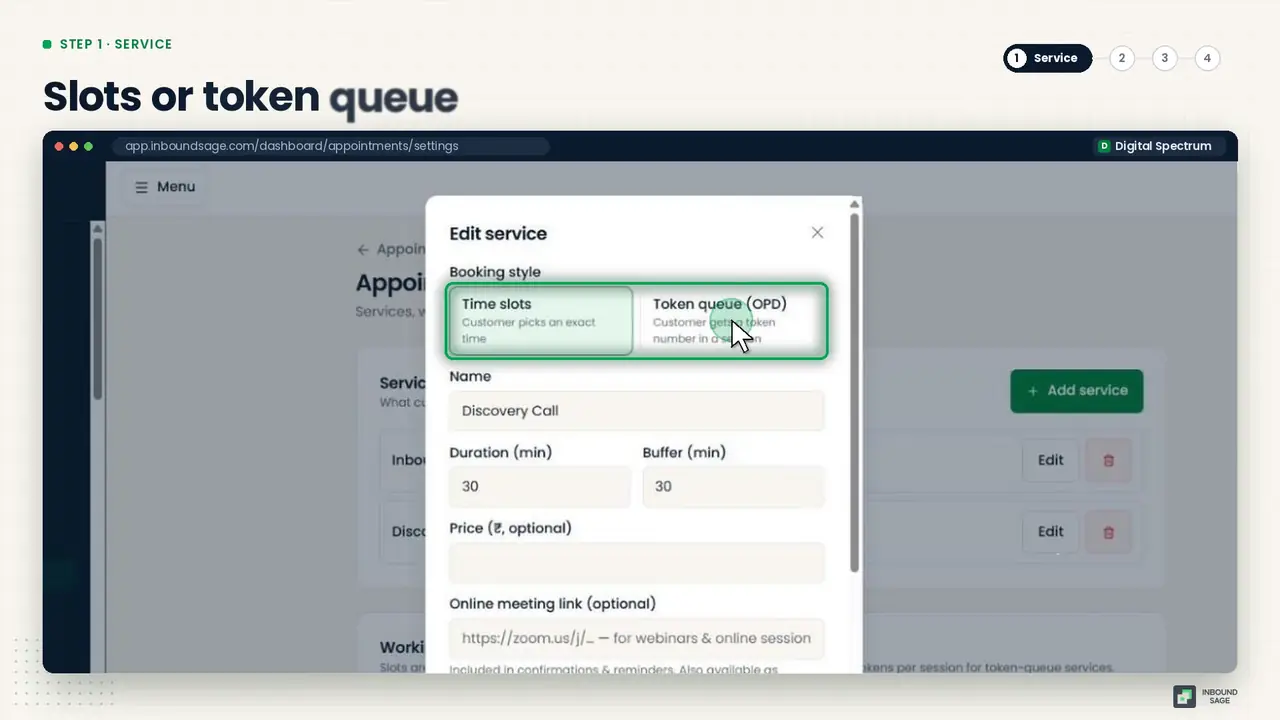
- Duration, such as 30 minutes.
- Booking style: time slots for fixed appointment times, or a token queue if customers are seen in order, as in many clinics.
- Keyword, such as
DISCOVERY. A customer who sends this word goes straight into booking this service.
Step 2: Set your working hours
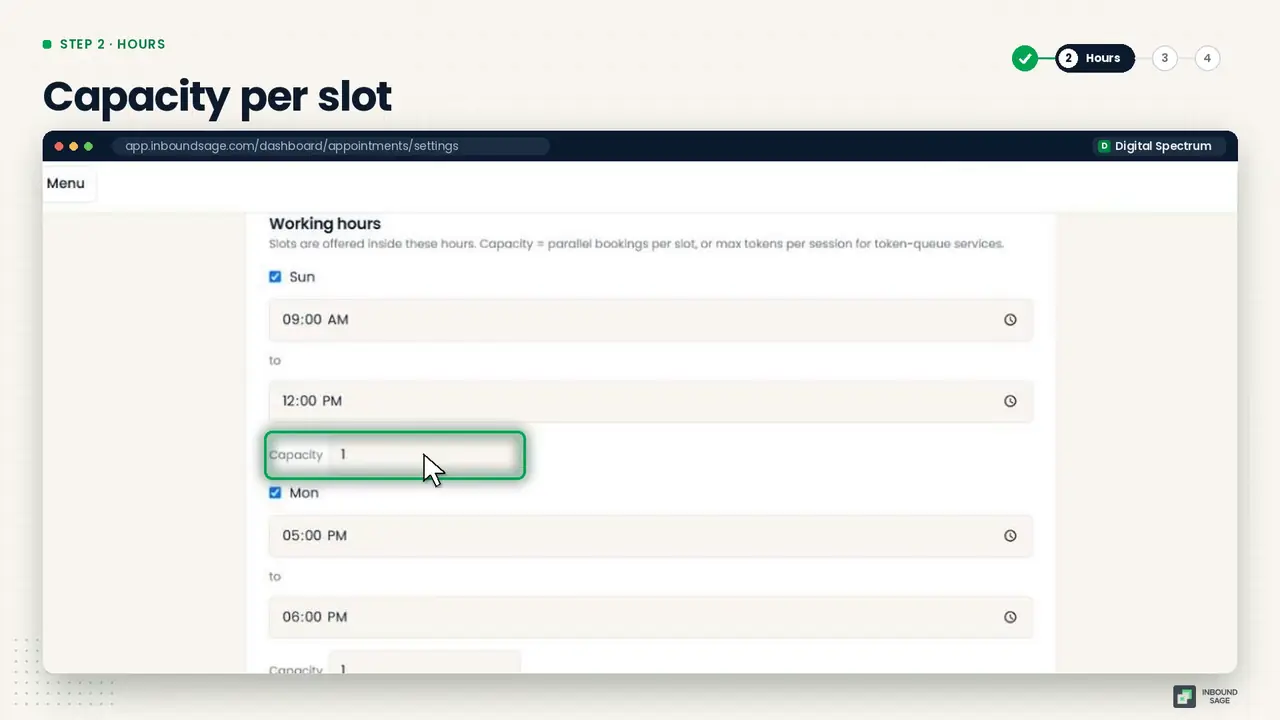
Set your hours for each day of the week. Capacity is how many people can book the same slot: 1 for a consultant, more for a clinic with several doctors.
Add holidays, and those days are blocked from booking automatically.
Step 3: Turn on reminders
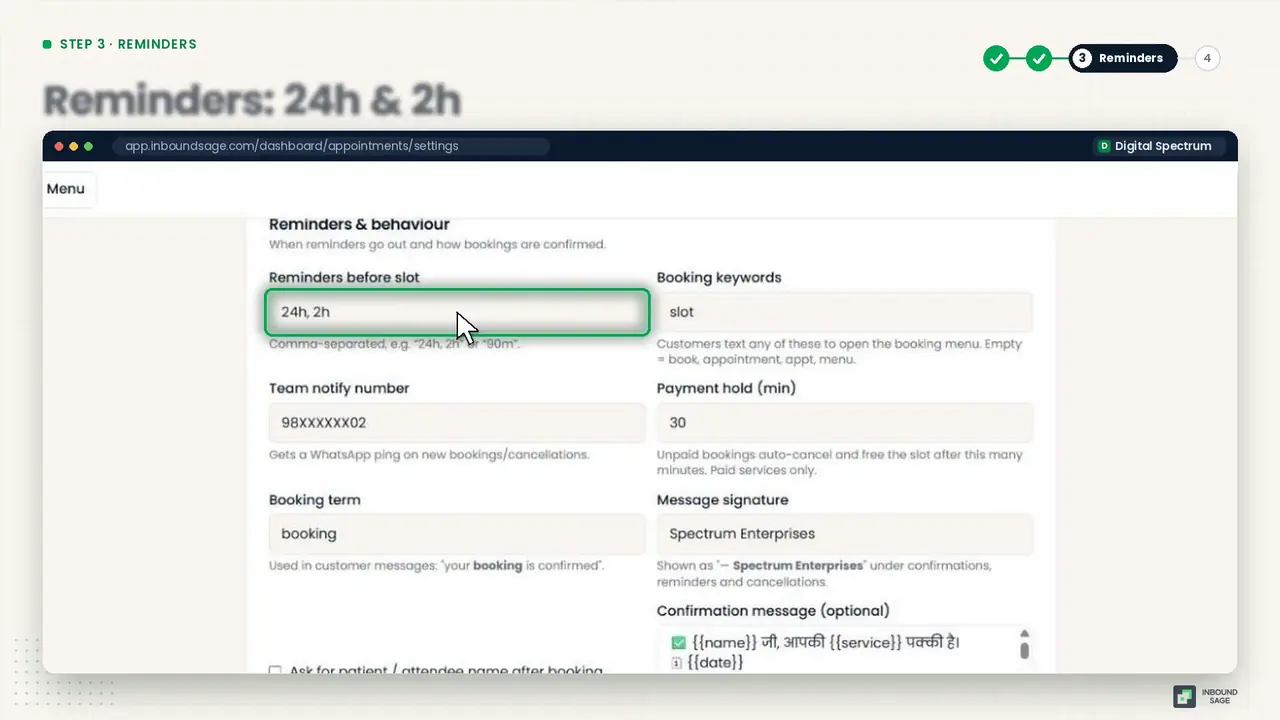
Turn on reminders 24 hours and 2 hours before each appointment, and pick a Reminder fallback template so reminders still go out when the customer has not messaged you in the last 24 hours. Customers can confirm, reschedule or cancel with one tap in the reminder. A cancelled slot frees up for someone else instead of sitting empty.
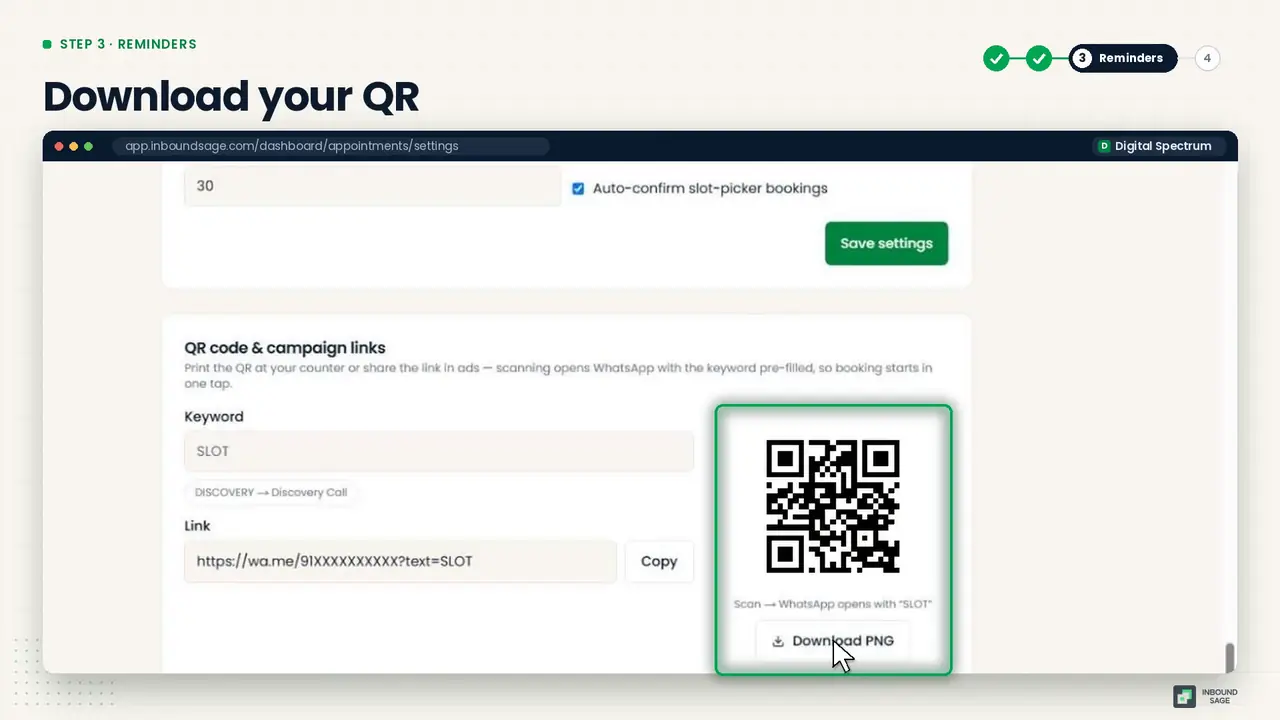
Then download your booking QR code and put it anywhere customers see it: the counter, your visiting card, an Instagram story. Scanning it opens WhatsApp ready to book.
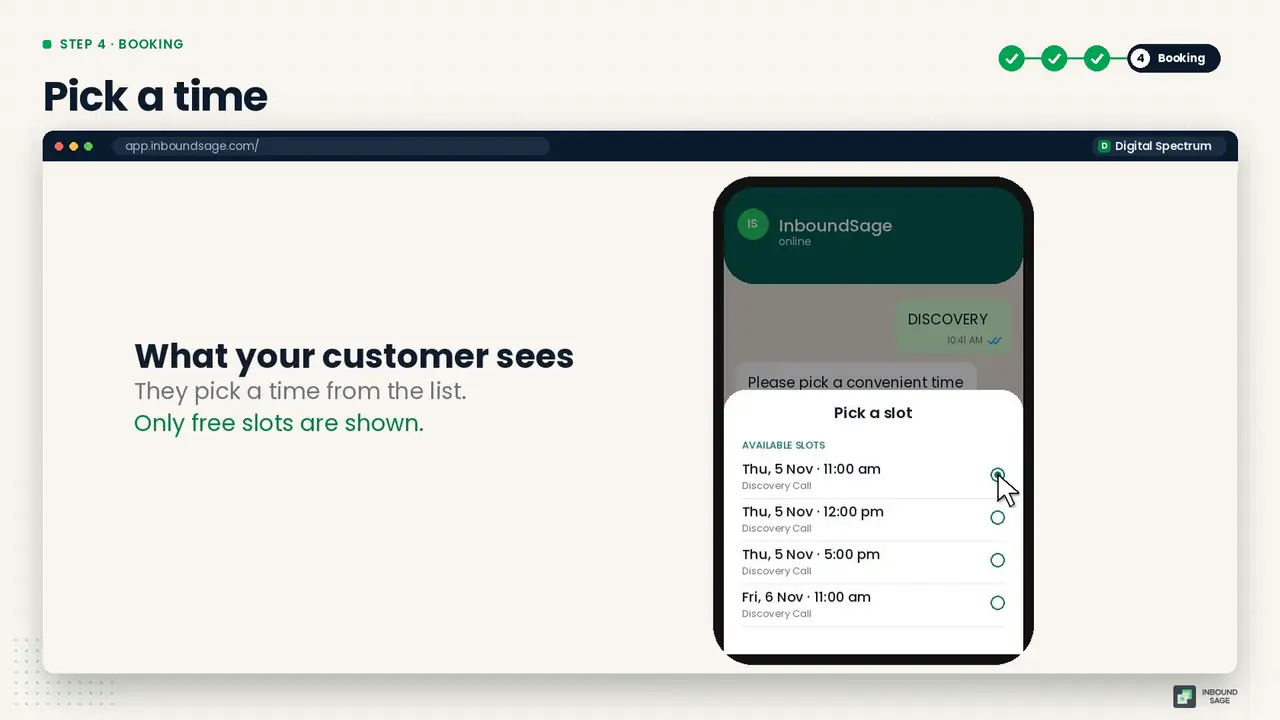
Step 4: What your customer sees
The customer types the keyword, picks a time from the list of open slots, and gets an instant confirmation on WhatsApp. No calls, no back and forth, and it works at midnight.
Step 5: Manage every booking
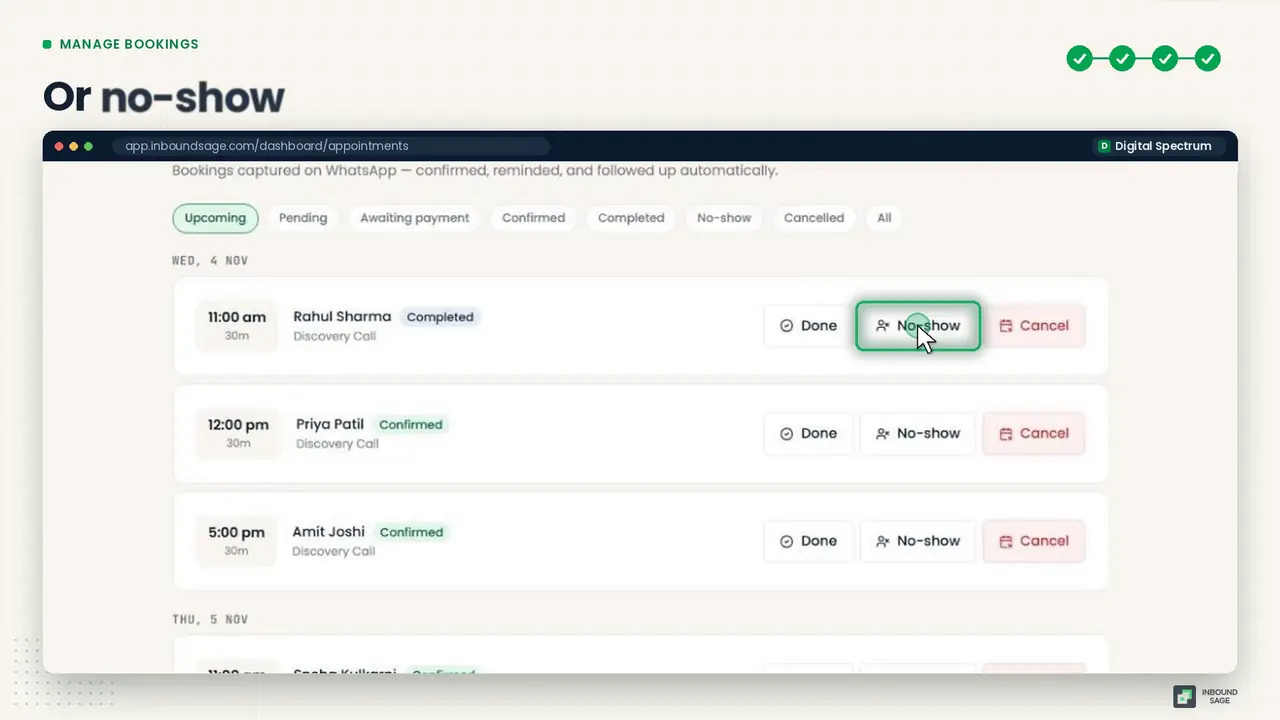
Every booking lands in your agenda. Mark each one Done or No-show in one click. Over time, that tells you which days and services have the most no-shows.
Tip: connect it to your other automations
Add a keyword auto-reply for words like "appointment" and "book" that points customers to your booking keyword, and they never have to wait for a person to reply.
FAQ
Can customers reschedule on their own?
Yes. Reminders include one-tap options to confirm, reschedule or cancel.
What is the difference between time slots and token queue?
Time slots give each customer a fixed time, like 4:30 pm. A token queue gives them a place in line for the day, which suits walk-in style clinics.
Do reminders need an approved template?
If the customer messaged you in the last 24 hours, the reminder goes as a normal WhatsApp message. Outside that window WhatsApp requires an approved template, so set a Reminder fallback template in Appointments → Settings. Without one, reminders outside the window cannot be sent.
Can I block a day off?
Yes. Add it as a holiday and nobody can book it.
Try it on your own WhatsApp number
InboundSage is a Verified Meta Tech Provider platform for Indian businesses: broadcasts, segments, keyword auto-replies, appointment booking and a team inbox, on your own WhatsApp Business number. Set it up in an evening.