WhatsApp Tutorials
How to Create a WhatsApp Template That Gets Approved
Create a WhatsApp message template in InboundSage and get it approved by Meta: pick Marketing or Utility, name it, add a variable, image, footer and quick-reply buttons, then submit and sync. Plus the three most common rejection reasons. With a 1-minute video.
Padmesh Bhavsar · Founder, InboundSage · 4 November 2026 · 5 min read
WhatsApp lets you message a customer first only with a template that Meta has approved. Broadcasts, reminders and follow-ups outside the 24-hour window all need one, so a template that keeps getting rejected blocks everything else.
Here's how to create one in InboundSage that gets approved, usually within minutes. The video above shows it in about a minute.
Step 1: Pick the right category
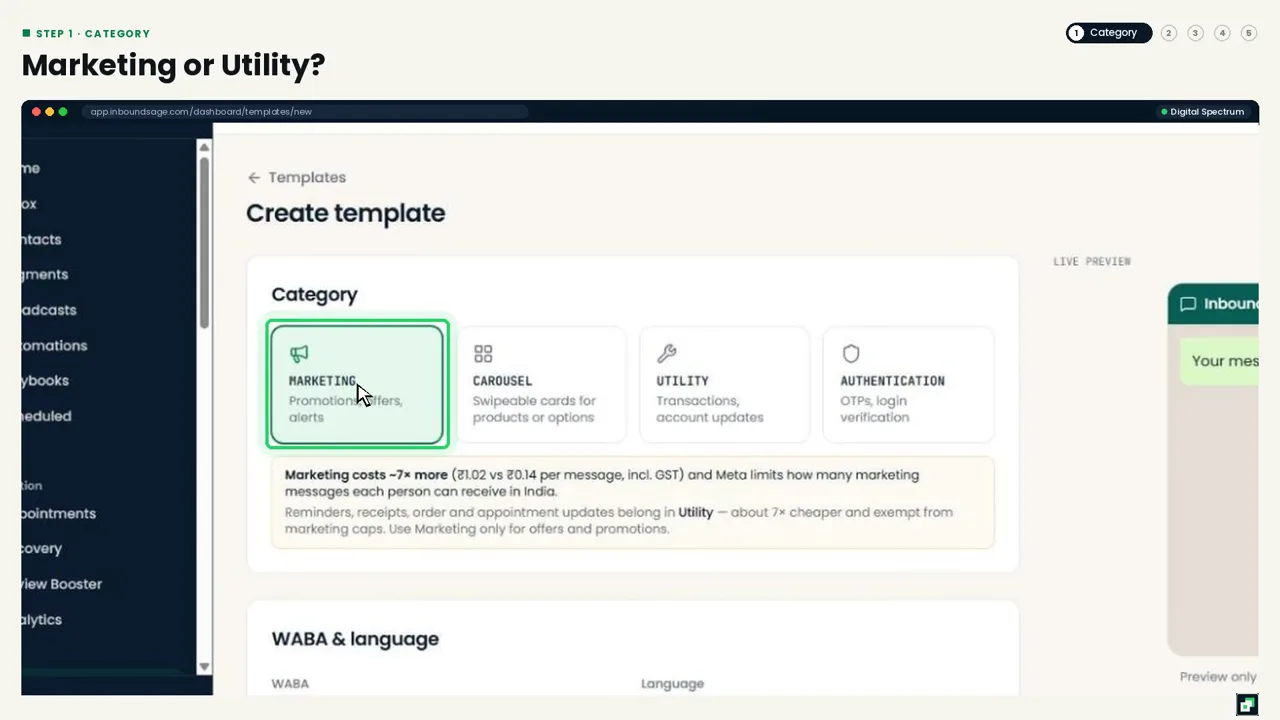
Go to Templates → Create template and choose a category:
- Marketing: offers, promotions, festival sales, new arrivals.
- Utility: order confirmations, booking updates, receipts, reminders tied to something the customer did.
- Authentication: one-time passwords.
The category decides the price. A marketing message costs about ₹1.02, a utility message about ₹0.14 (both including GST), so Utility is roughly 7× cheaper. But don't put offers in a Utility template: Meta will reclassify or reject it.
Step 2: Name it and pick the language
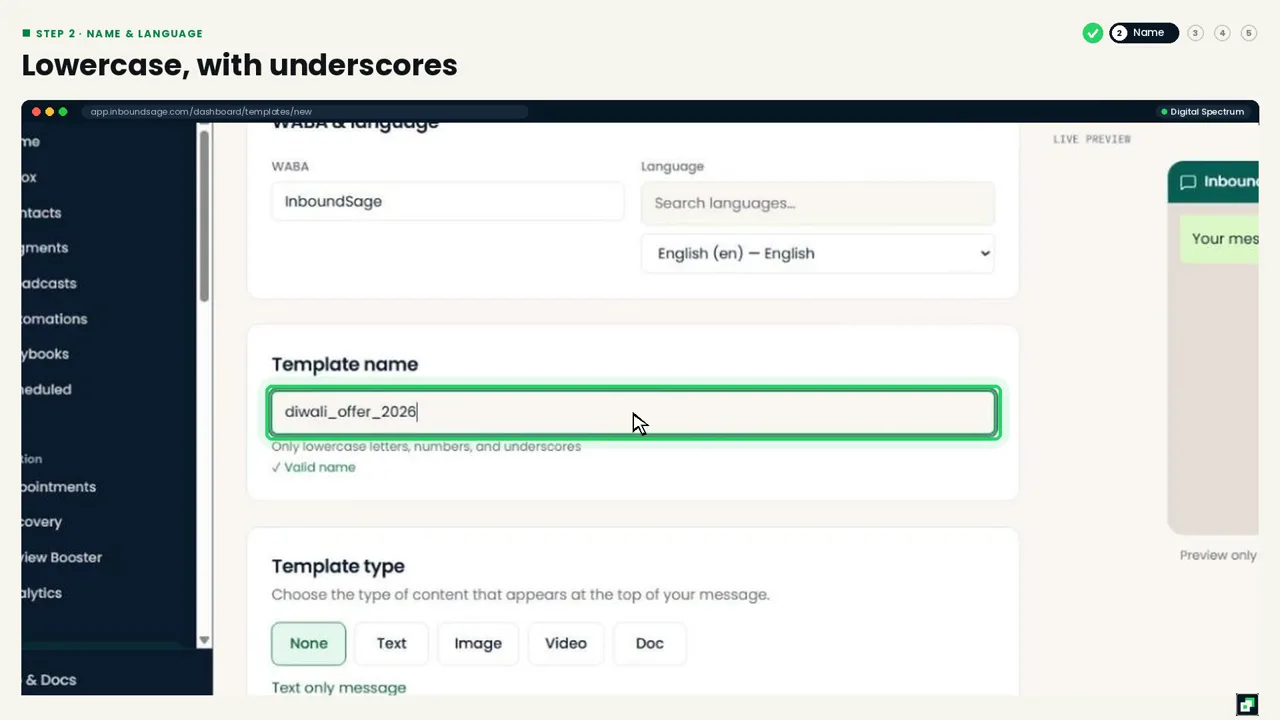
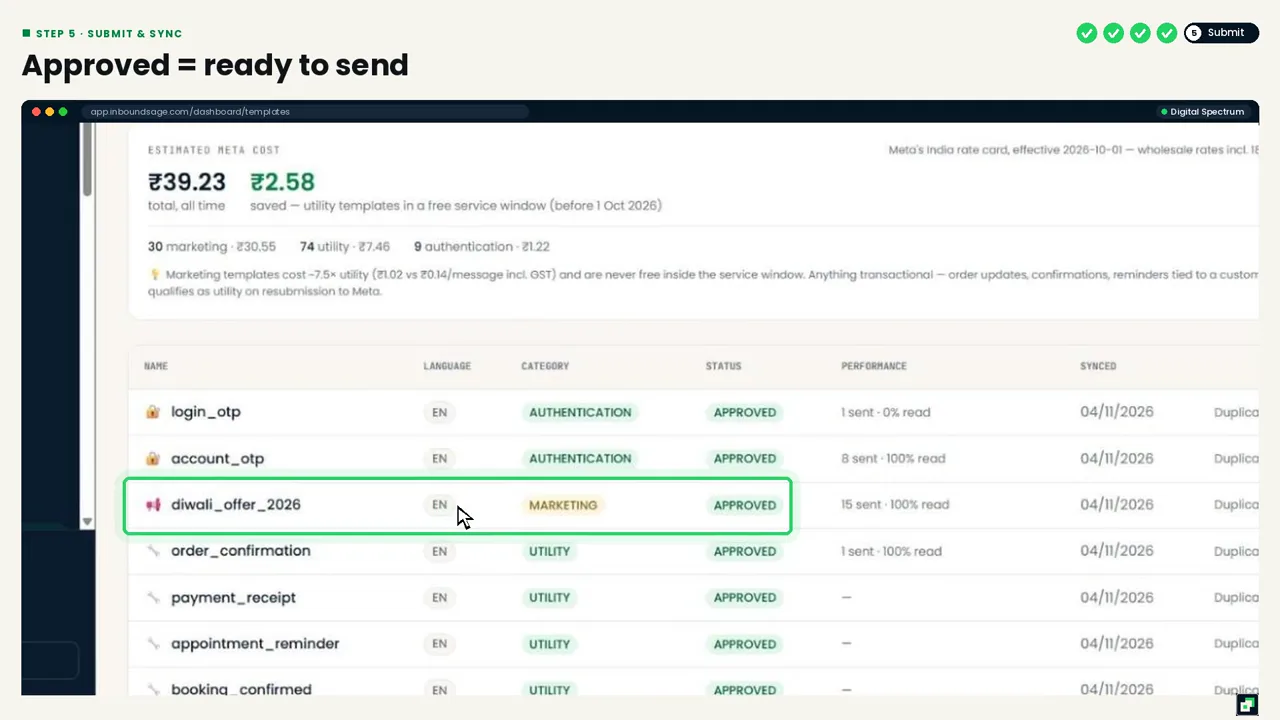
Use a short name in lowercase with underscores, like diwali_offer_2026. Then pick the language your customers read. Hindi and Marathi templates are fine; just create one template per language.
Step 3: Write the message
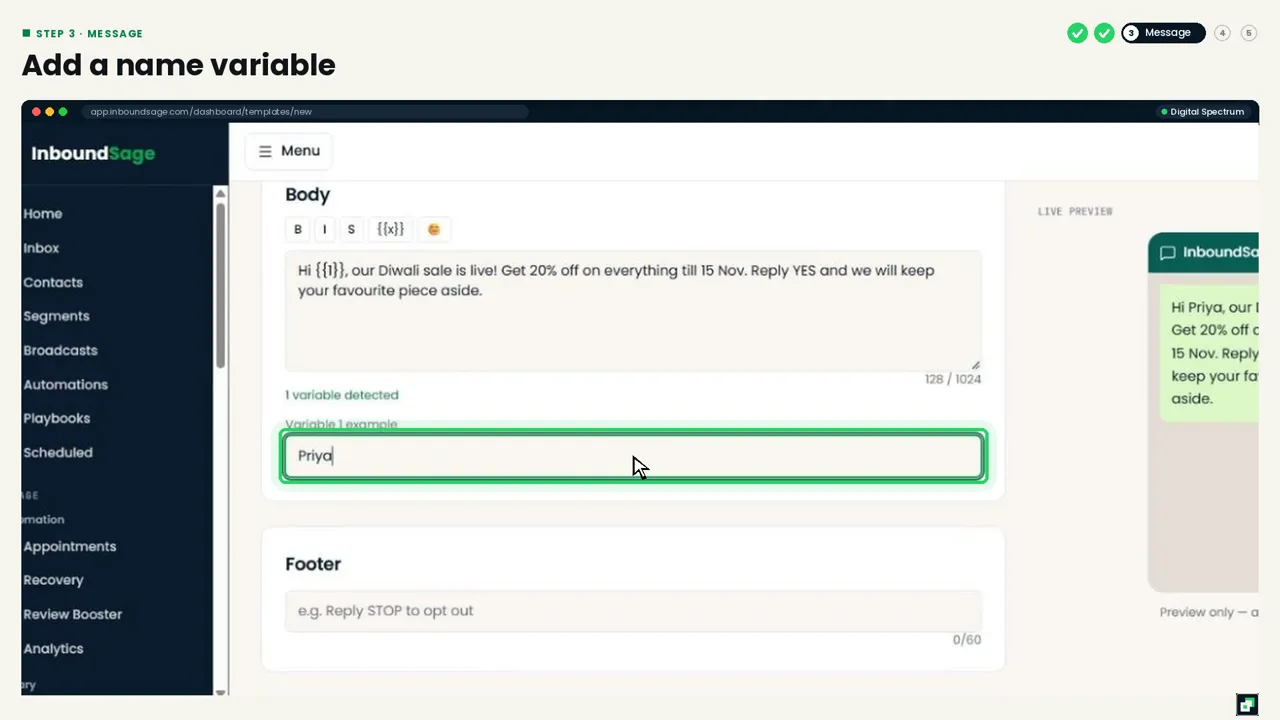
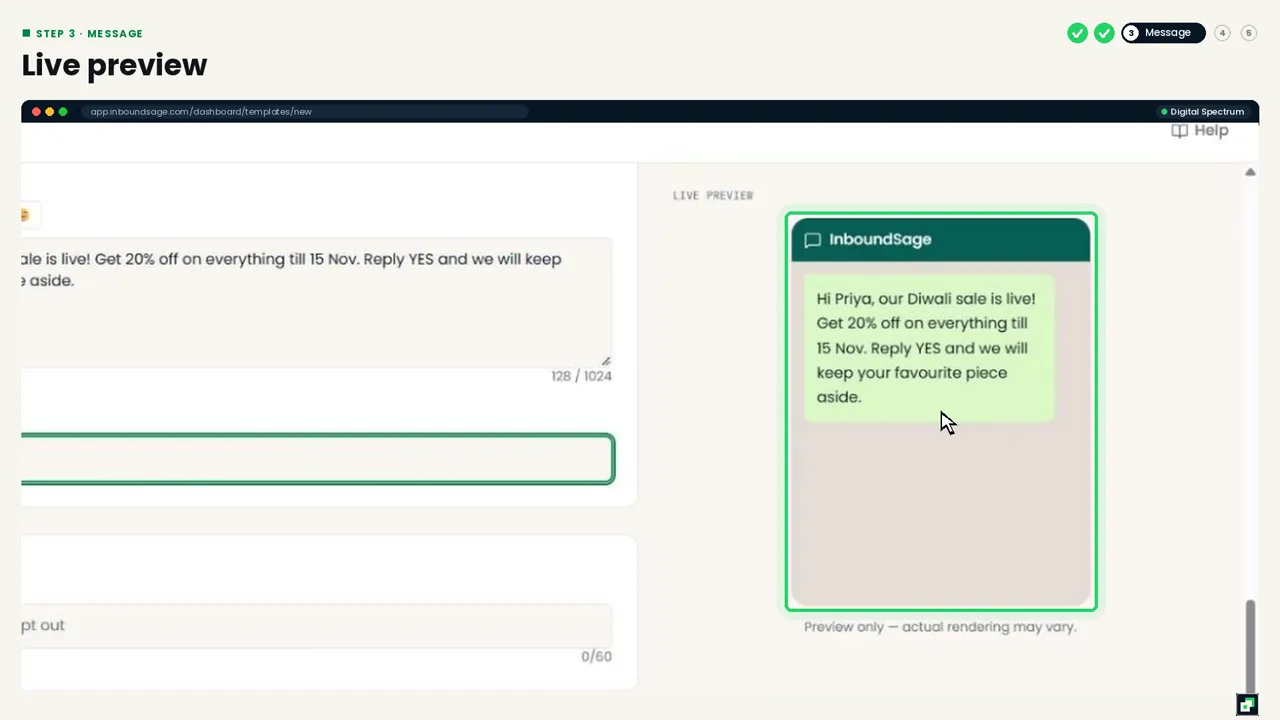
Write it the way you'd talk to a customer. Add a variable for their name, shown as {{1}}, and type a sample value like "Priya" so Meta can see how it reads. The live preview on the right shows exactly what the customer will see.
Step 4: Add an image, footer and buttons
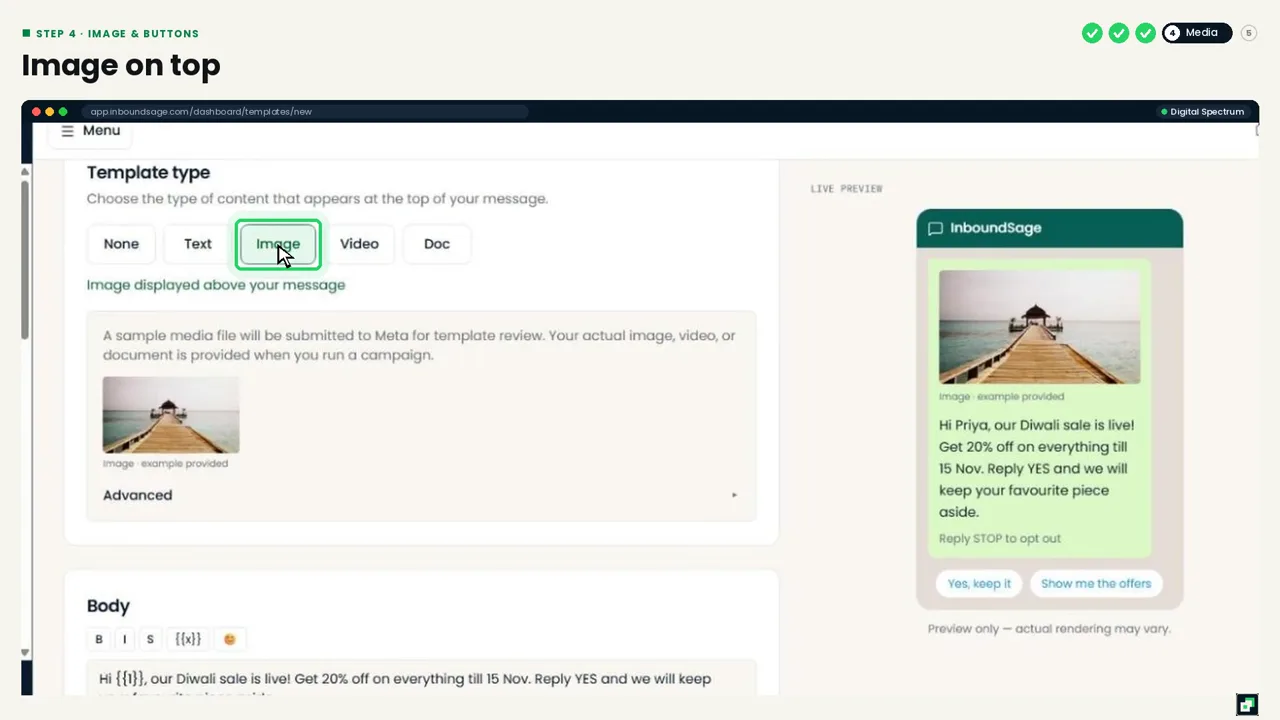
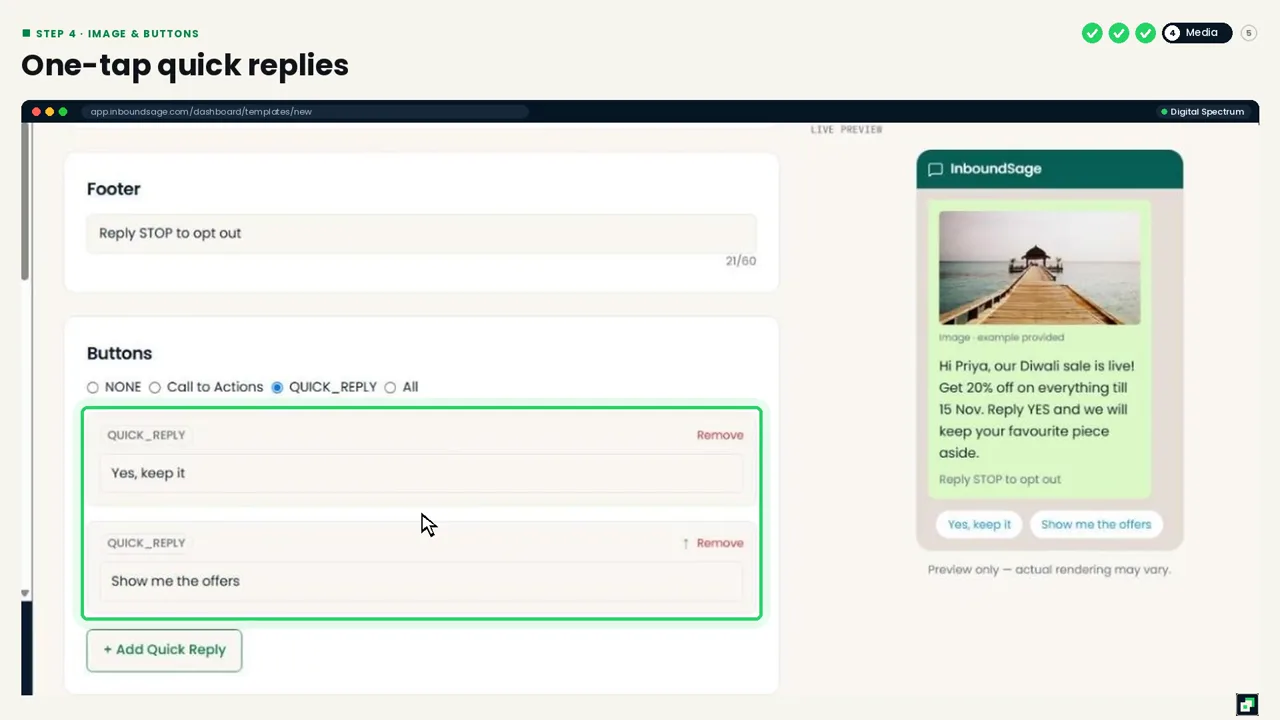
Under Template type, choose Image to add a picture on top. The actual image is picked each time you send, so one template works for many campaigns. Add a short footer such as "Reply STOP to opt out", and Quick Reply buttons so customers can answer in one tap.
Step 5: Submit and sync
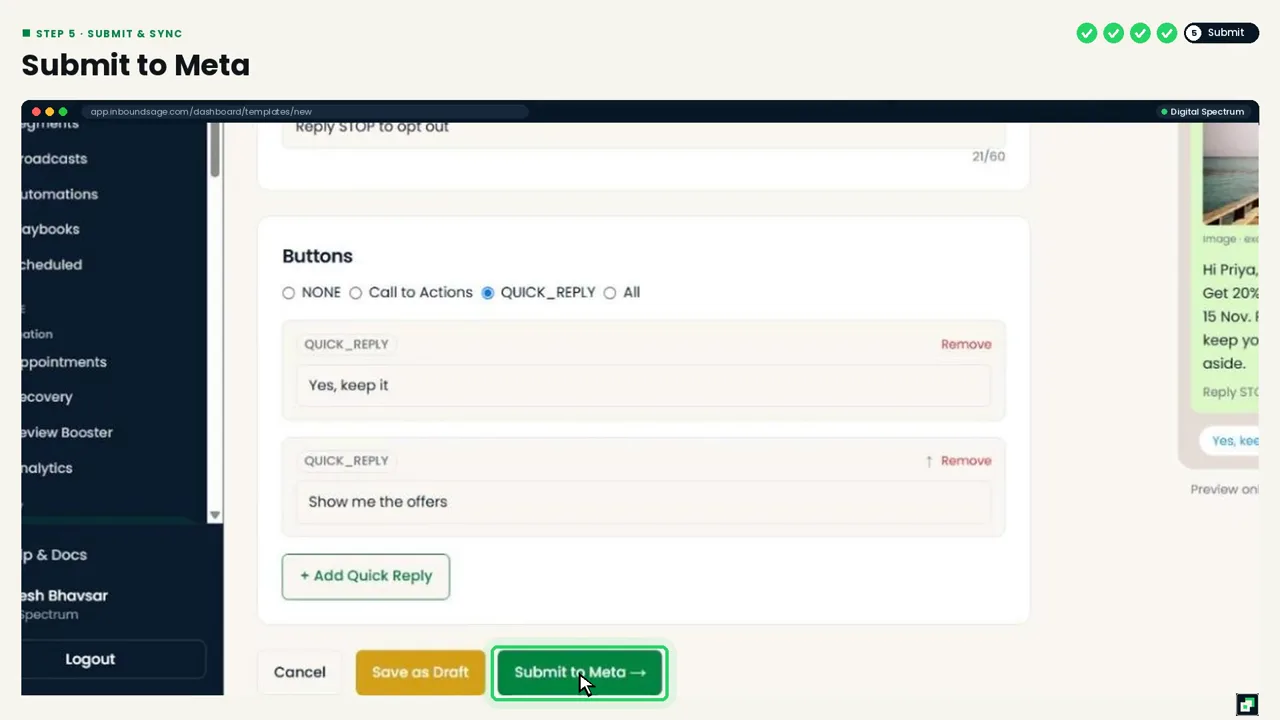
Click Submit to Meta. Approval usually takes a few minutes, sometimes a few hours. On the Templates list, click Sync from Meta to refresh the status. Once it shows Approved, the template is ready for broadcasts and automations.
Why templates get rejected
- The message starts or ends with a variable. Put a few words before
{{1}}and after the last variable. - The category doesn't match the content. Any offer, discount or "buy now" wording belongs in Marketing.
- It looks like spam. All capitals, too many emojis, or a vague message with no clear purpose.
Fix the issue, then submit again with a new name.
FAQ
How long does template approval take?
Usually a few minutes. Some templates take a few hours.
Can I edit a template after it's approved?
Create a new version with a new name, such as diwali_offer_2026_v2. Use Duplicate in the Templates list to start from the old one.
Do I need a template to reply to a customer?
Not within 24 hours of their last message. Outside that window, WhatsApp requires an approved template.
Want to show several products in one message?
Use a carousel template: swipeable cards, each with its own image and buttons.
Try it on your own WhatsApp number
InboundSage is a Verified Meta Tech Provider platform for Indian businesses: broadcasts, segments, keyword auto-replies, appointment booking and a team inbox, on your own WhatsApp Business number. Set it up in an evening.