WhatsApp Tutorials
WhatsApp Team Inbox: How Your Whole Team Can Reply Faster
Run one shared WhatsApp inbox for your whole team: filter unread chats, take over from the bot, reply with Quick Replies, leave internal notes, handle the 24-hour window and invite staff with the right role. With a 1-minute video walkthrough.
Padmesh Bhavsar · Founder, InboundSage · 4 November 2026 · 5 min read
When one phone handles every customer chat, replies get slow and messages get missed. The owner answers some, staff answer others, and nobody knows who said what.
The Team Inbox in InboundSage puts every WhatsApp conversation in one place your whole team can use, from any computer. The video above walks through it in about a minute.
Step 1: Find the right chat
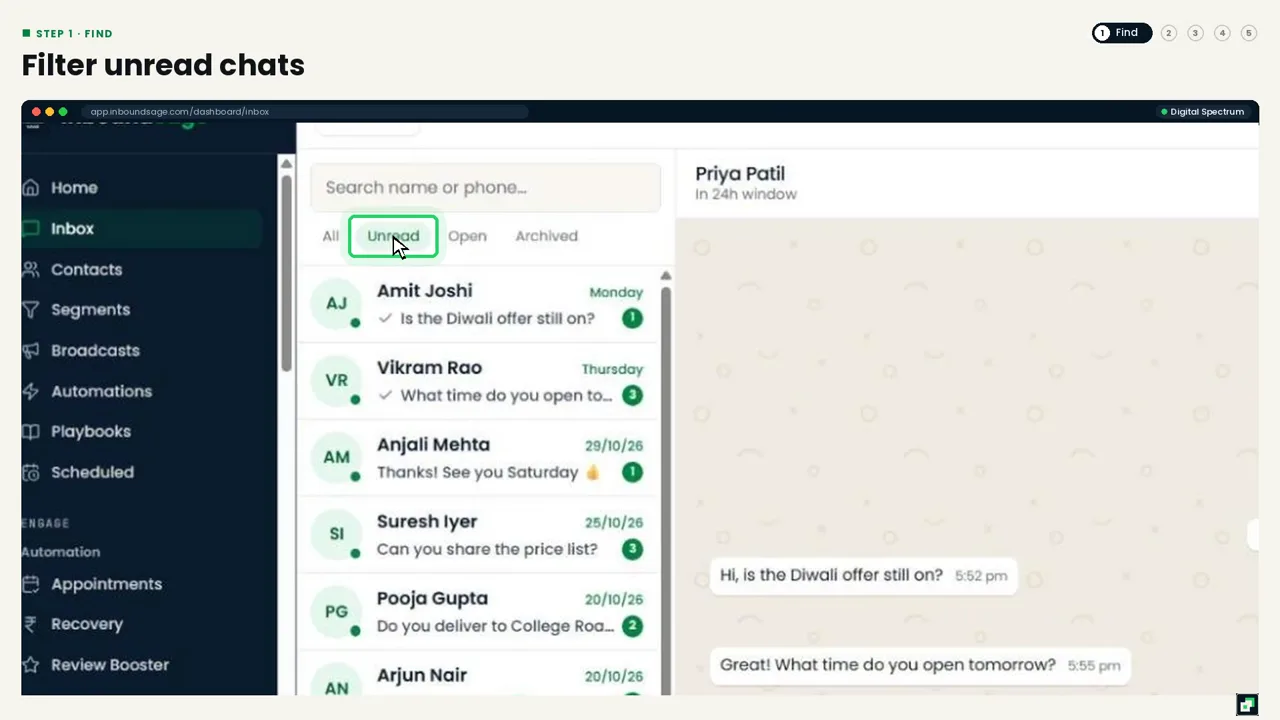
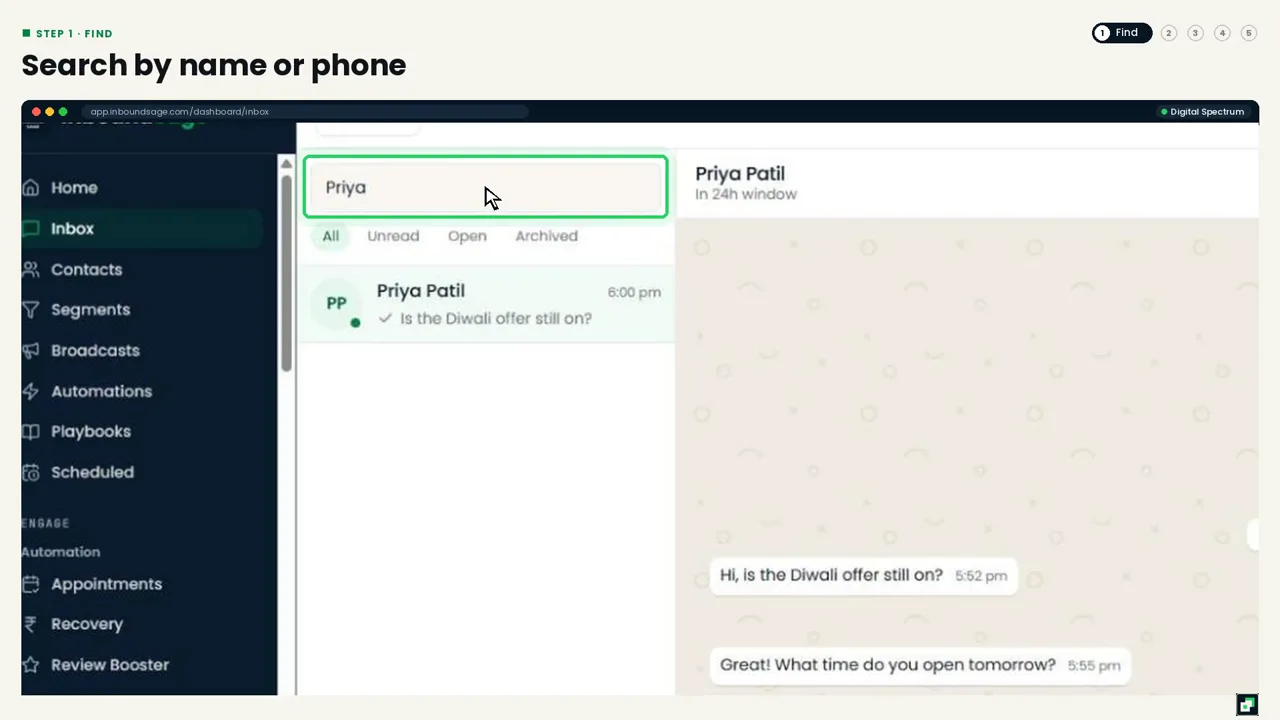
Open Inbox. Use the filters on top, All, Unread, Open and Archived, to see unread or open chats first. To find a customer, type their name or phone number in Search name or phone.
Step 2: Take over from the bot
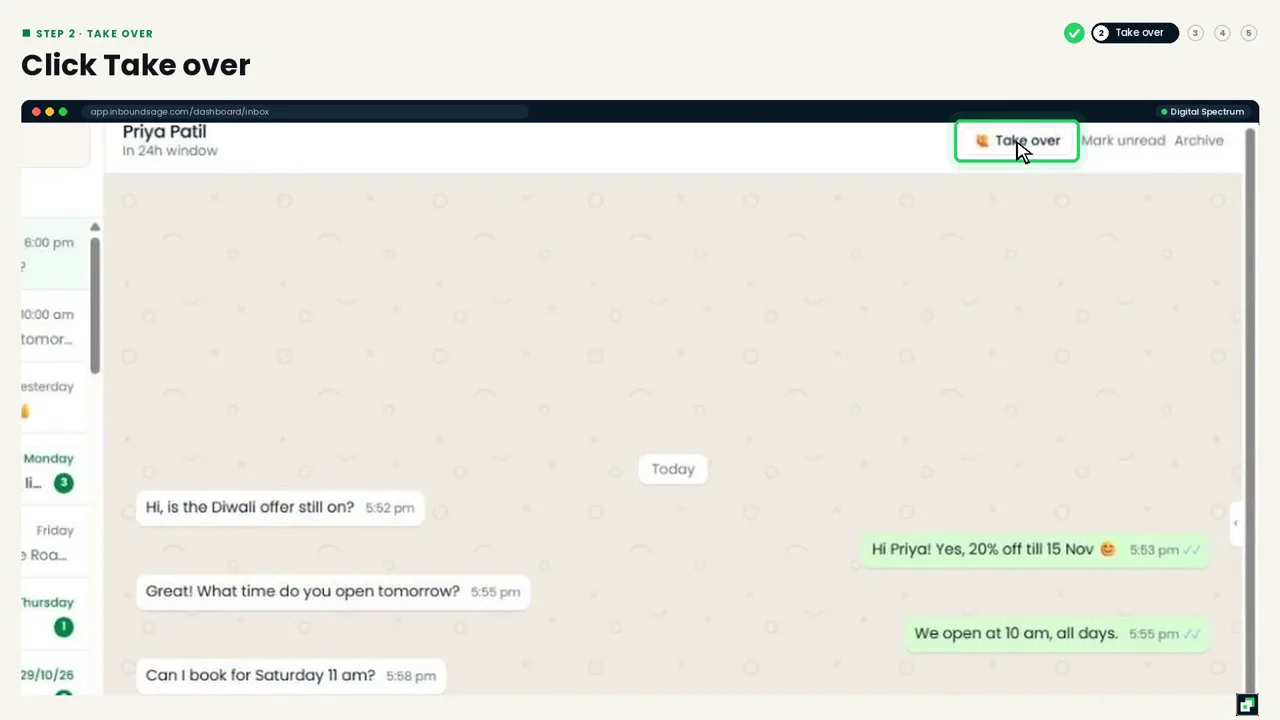
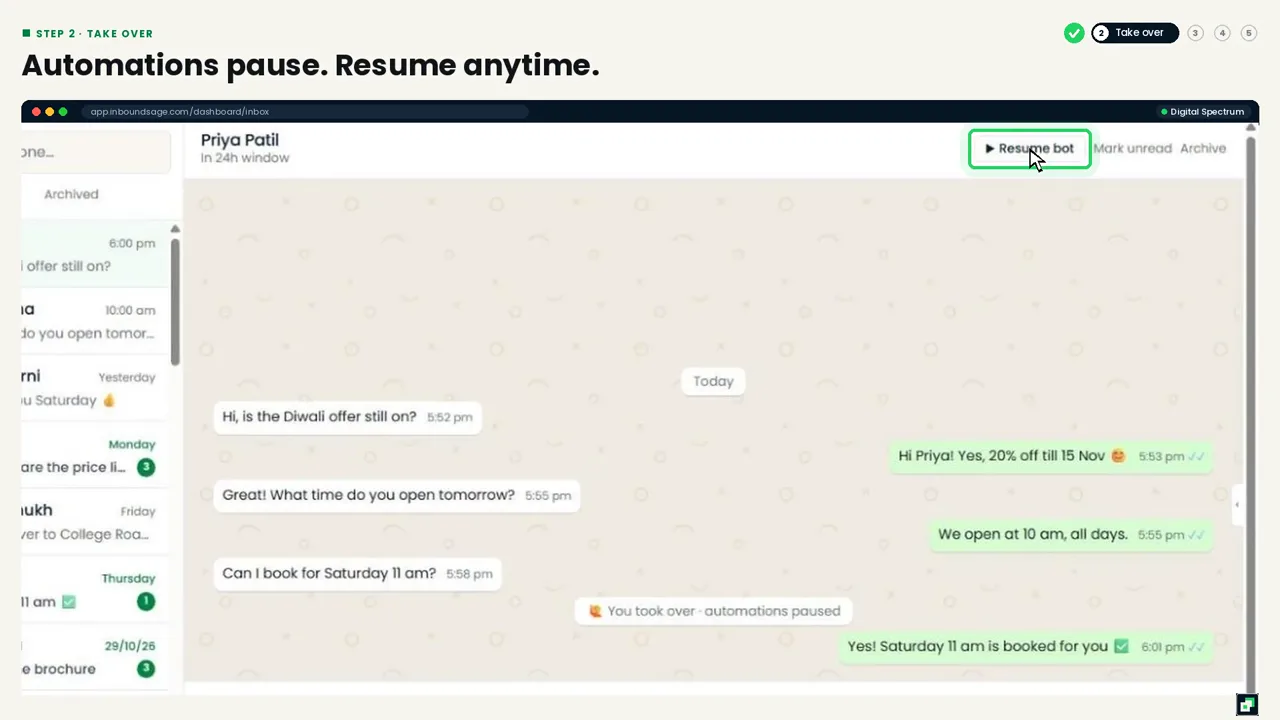
If an automation is replying to a customer, click Take over at the top of the chat. Automations pause for that customer, so you can chat yourself without the bot talking over you. When you are done, click Resume bot and automations carry on.
Step 3: Reply in one keystroke with Quick Replies
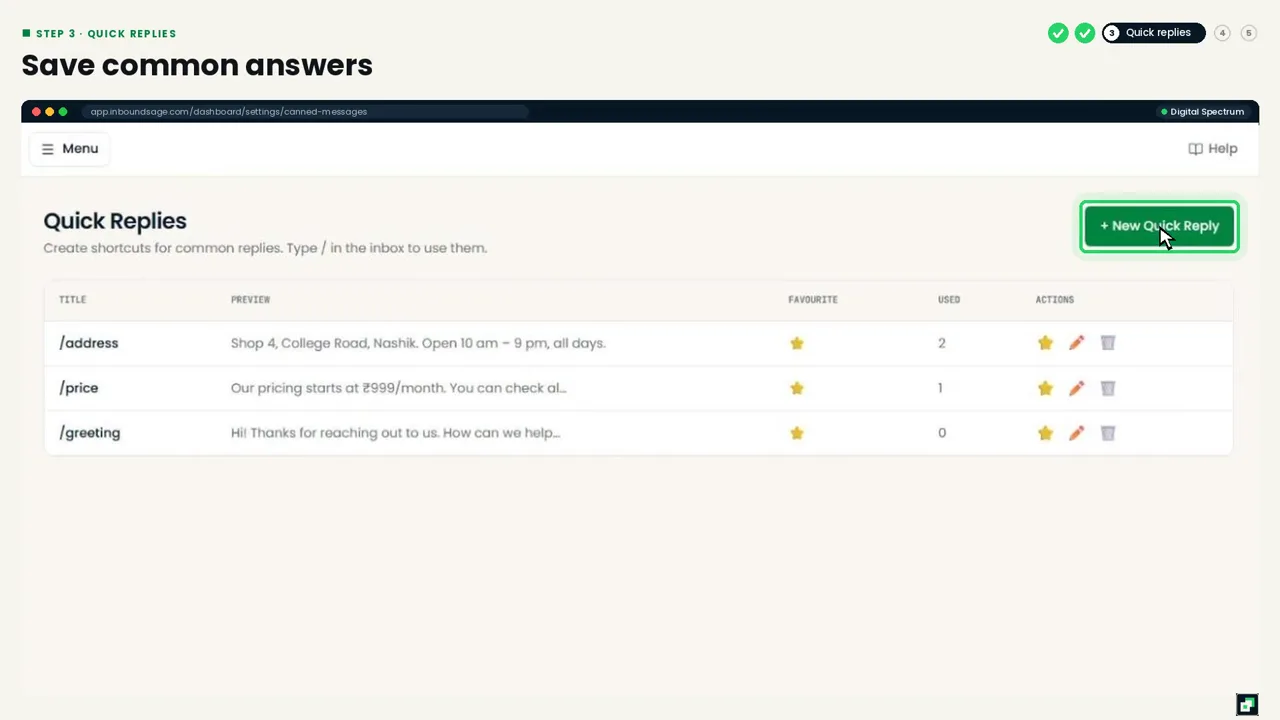
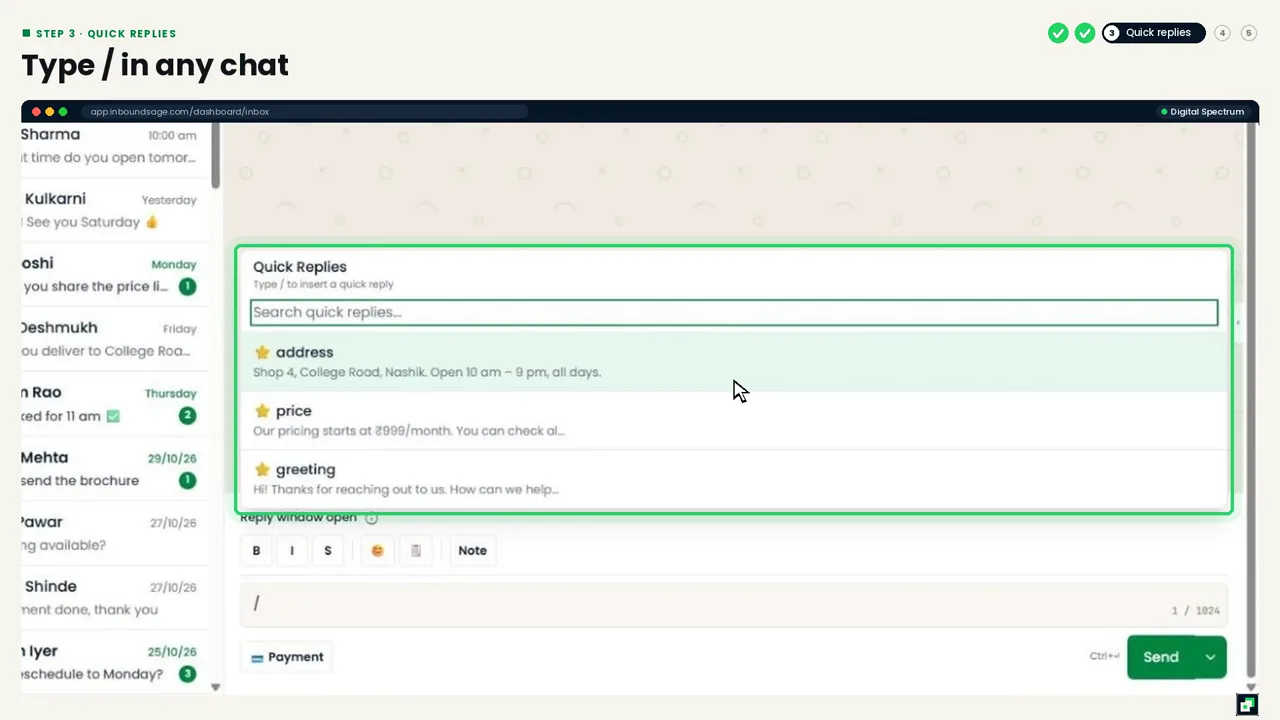
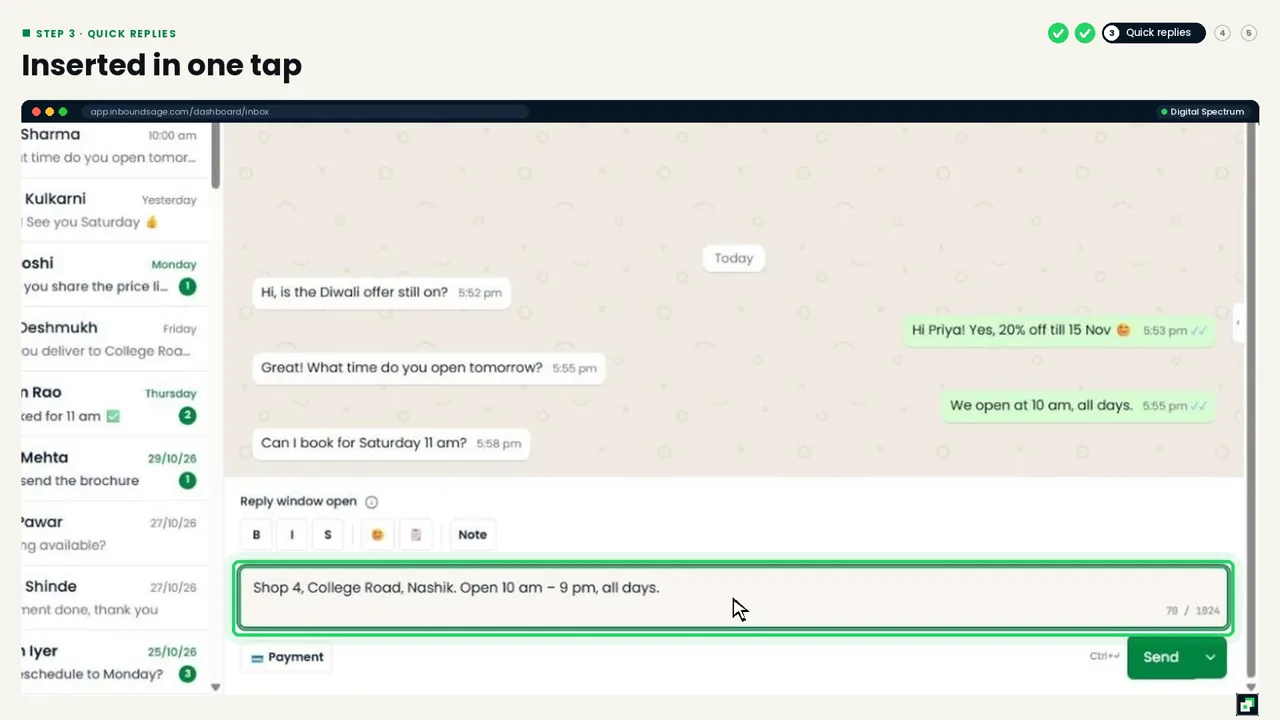
Save the answers you type every day, like your address, prices or timings, under Settings → Quick Replies. Then, in any chat, type / and pick one. It drops into the message box, ready to send or edit.
Step 4: Internal notes and the 24-hour window
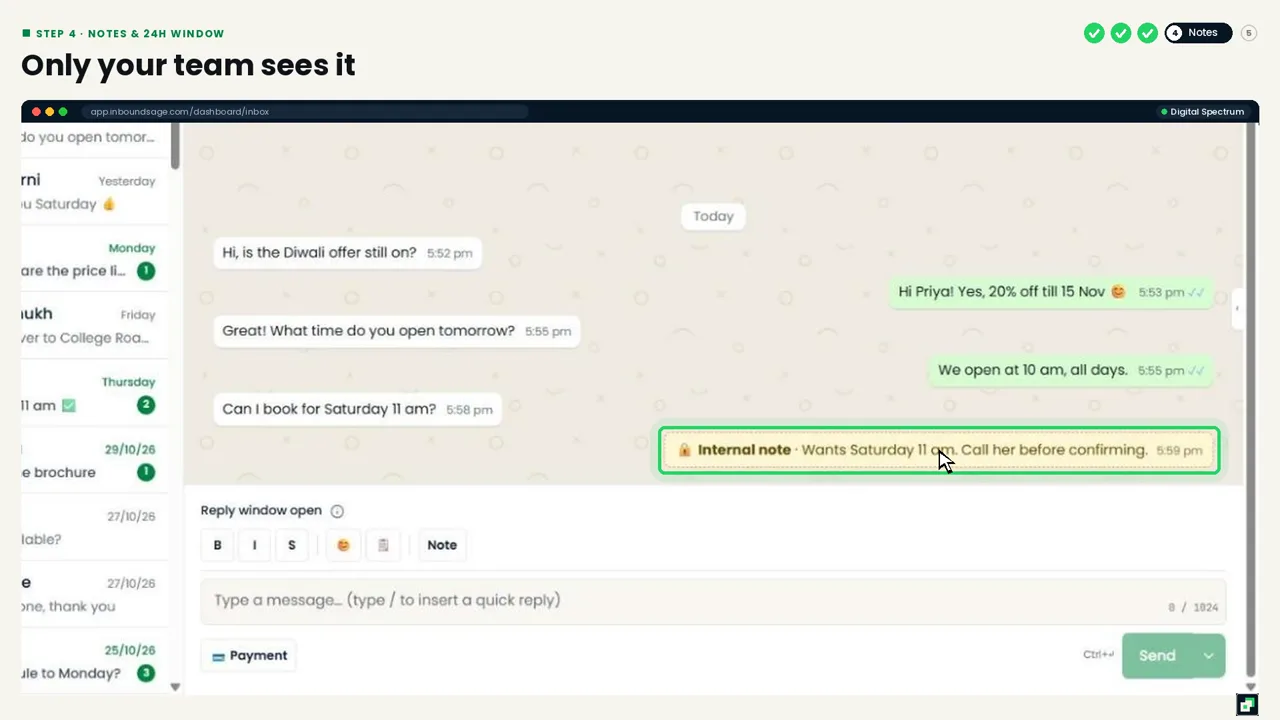
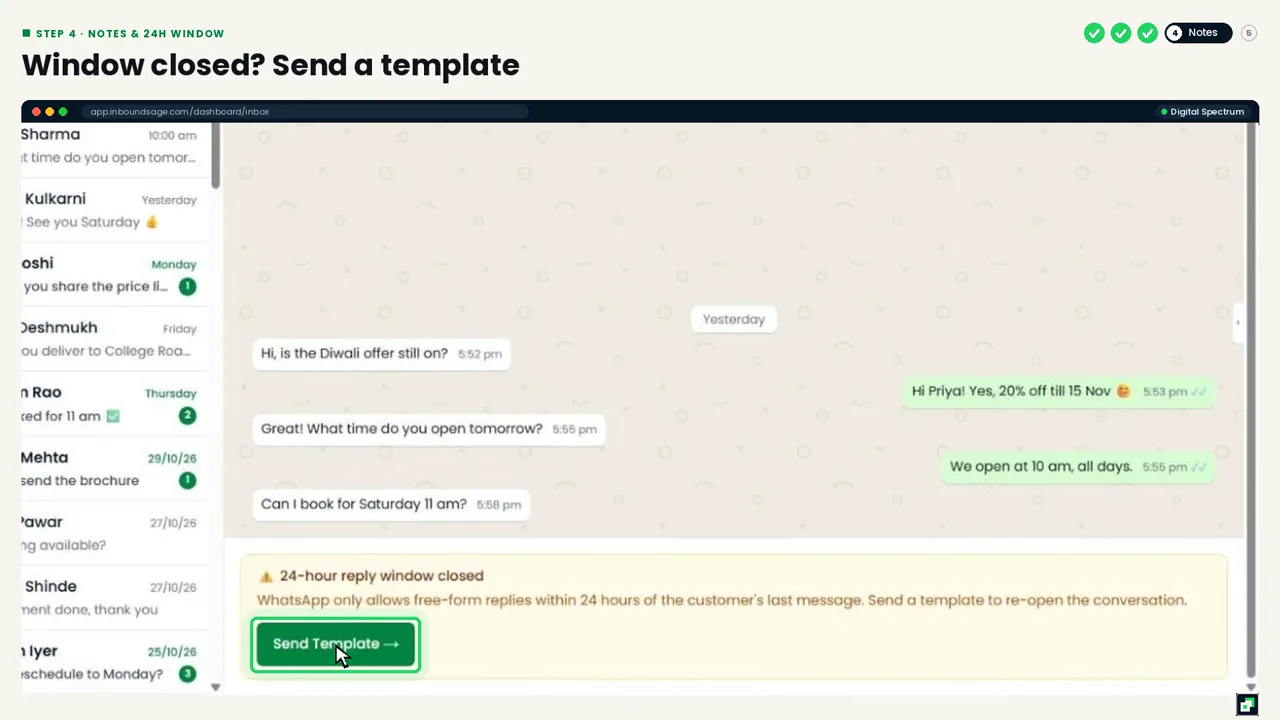
Click Note to leave an internal note for your team, such as "Call her before confirming". Customers never see notes, so the next person who opens the chat has the full story.
WhatsApp allows free-form replies only within 24 hours of the customer's last message. The inbox shows when the reply window is open. When it is closed, click Send Template and send an approved template to restart the conversation. Not sure how to get one approved? See how to send your first broadcast.
Step 5: Add your team
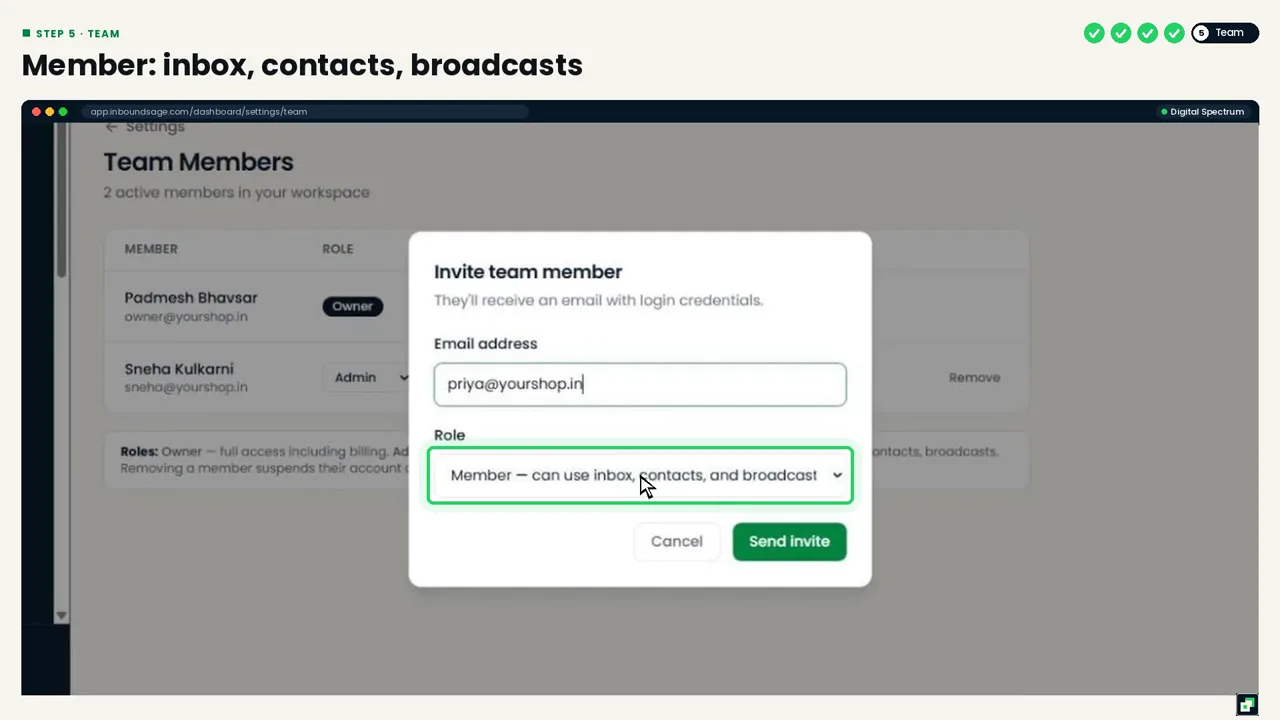
Go to Settings → Team Members and click Invite member. Enter their email and pick a role:
- Member: inbox, contacts and broadcasts.
- Admin: everything a Member can do, plus settings. Admins cannot manage billing.
- Owner: full access, including billing.
They get an email with their login details.
Tip: let the bot handle the first reply
Set up a keyword auto-reply for common questions like price and timings. The bot answers instantly, and your team takes over only when a real conversation starts.
FAQ
Can several people use the inbox at the same time?
Yes. Every team member logs in with their own email and sees the same inbox, from any computer.
Do customers see internal notes?
No. Notes stay inside InboundSage and are never sent on WhatsApp.
What happens to automations when I take over?
They pause for that one customer until you click Resume bot. Automations keep running for everyone else.
Why can't I type a reply in some chats?
The customer's last message is more than 24 hours old, so WhatsApp only allows an approved template. Click Send Template to restart the conversation.
Try it on your own WhatsApp number
InboundSage is a Verified Meta Tech Provider platform for Indian businesses: broadcasts, segments, keyword auto-replies, appointment booking and a team inbox, on your own WhatsApp Business number. Set it up in an evening.