WhatsApp Tutorials
WhatsApp QR Code for Your Shop: Turn Walk-ins into Customers You Can Follow Up
Put a WhatsApp QR code on your counter that saves every customer who scans, tags them and starts a follow-up on autopilot: create a QR door, print it with a reason to scan, reply instantly and use the tag in automations and broadcasts. With a 1-minute video walkthrough.
Padmesh Bhavsar · Founder, InboundSage · 11 November 2026 · 4 min read
A customer walks into your shop, looks around and leaves. You never get their number, so you can never invite them back.
A QR door in InboundSage fixes that. It is a WhatsApp QR code for one place, like your billing counter or your Instagram bio. When someone scans it and taps send, they are saved as a contact, tagged and answered instantly. The video above walks through it in about a minute.
Step 1: Create a door
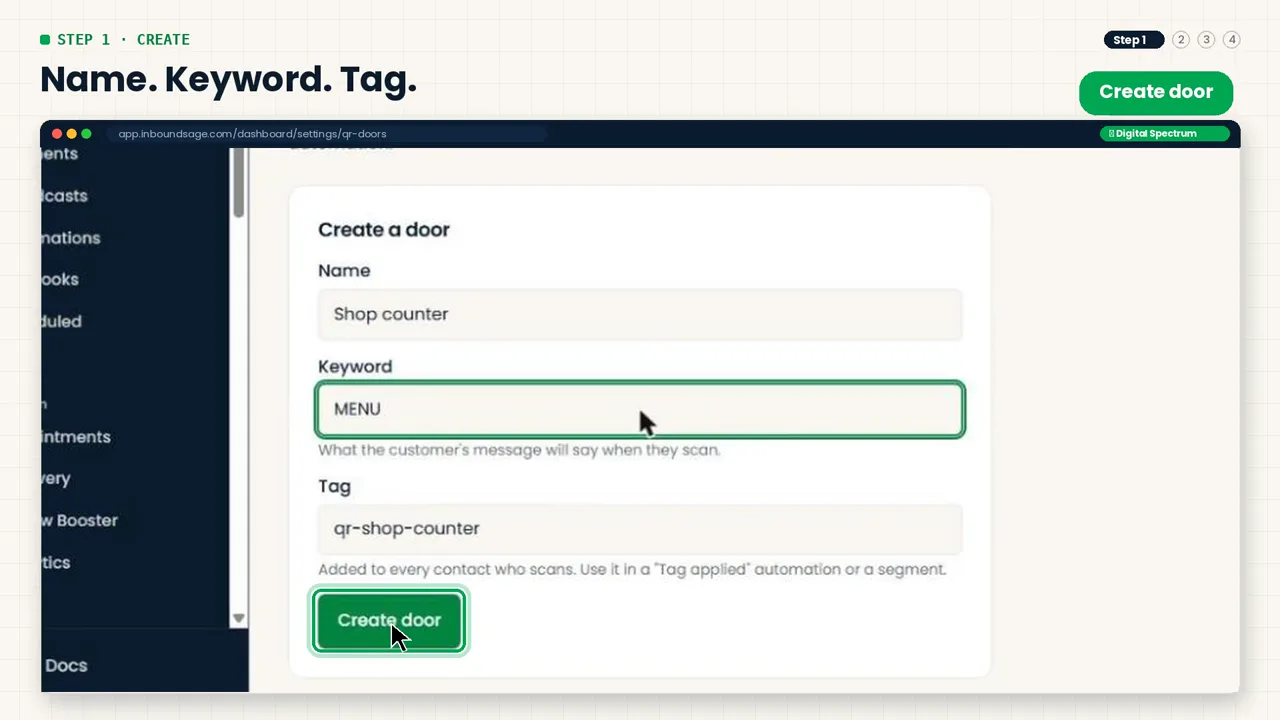
Go to Settings → QR & List-Building Doors. Fill in three fields:
- Name: where the QR will live, like Shop counter. One door per place lets you see which spot brings in the most customers.
- Keyword: a short word nobody types by accident, like MENU. It is the message the customer sends when they scan.
- Tag: fills itself in from the name (for example
qr-shop-counter). You can change it. Every contact who scans this door gets this tag.
Click Create door.
Step 2: Print it with a reason to scan
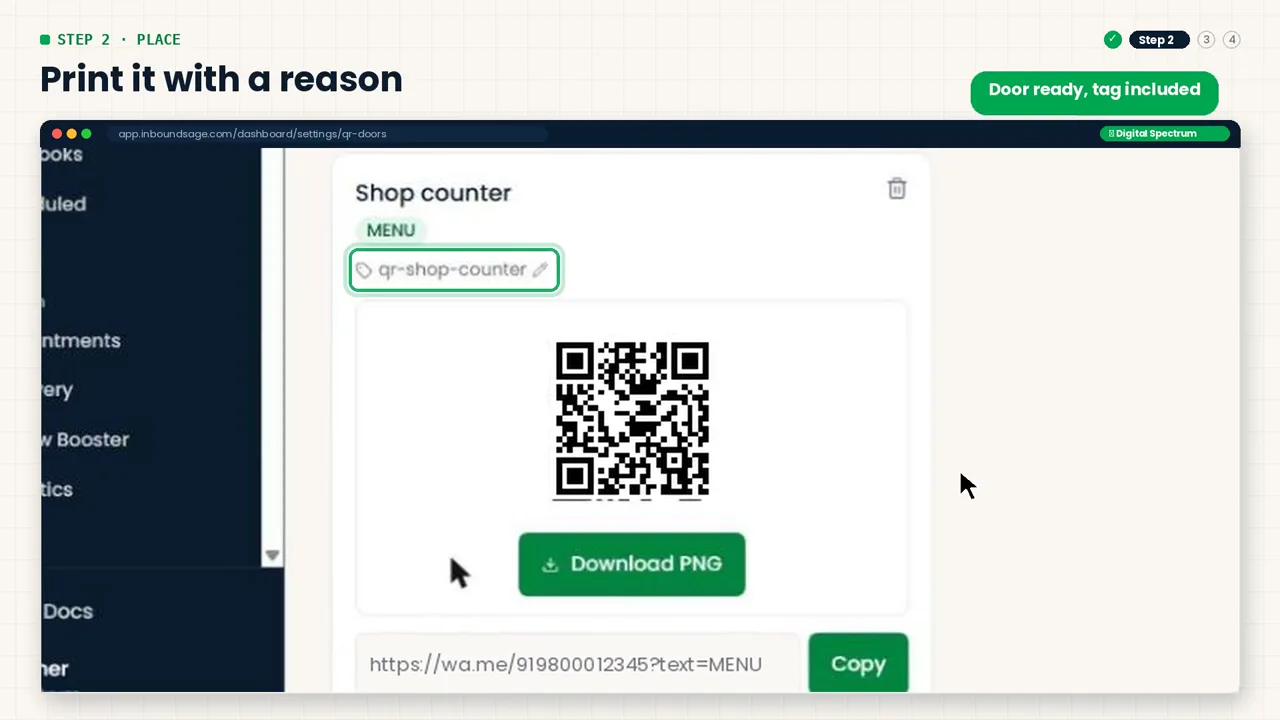
Your new door shows its QR code, its link and its tag. Click Download PNG and print it. Use Copy to grab the link for your Instagram bio, Google profile or flyers.
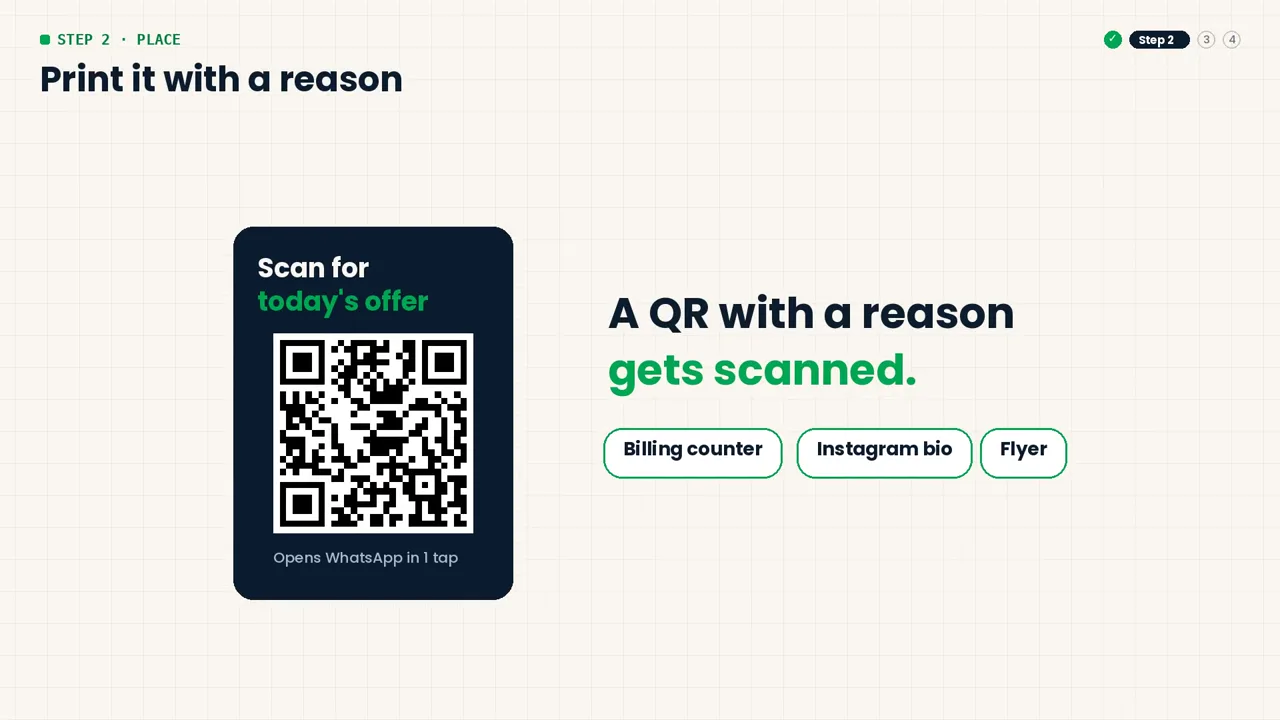
A bare QR code gets ignored. Put one line above it that gives people a reason, like Scan for today's offer or Scan for our menu.
Step 3: Reply instantly, day or night
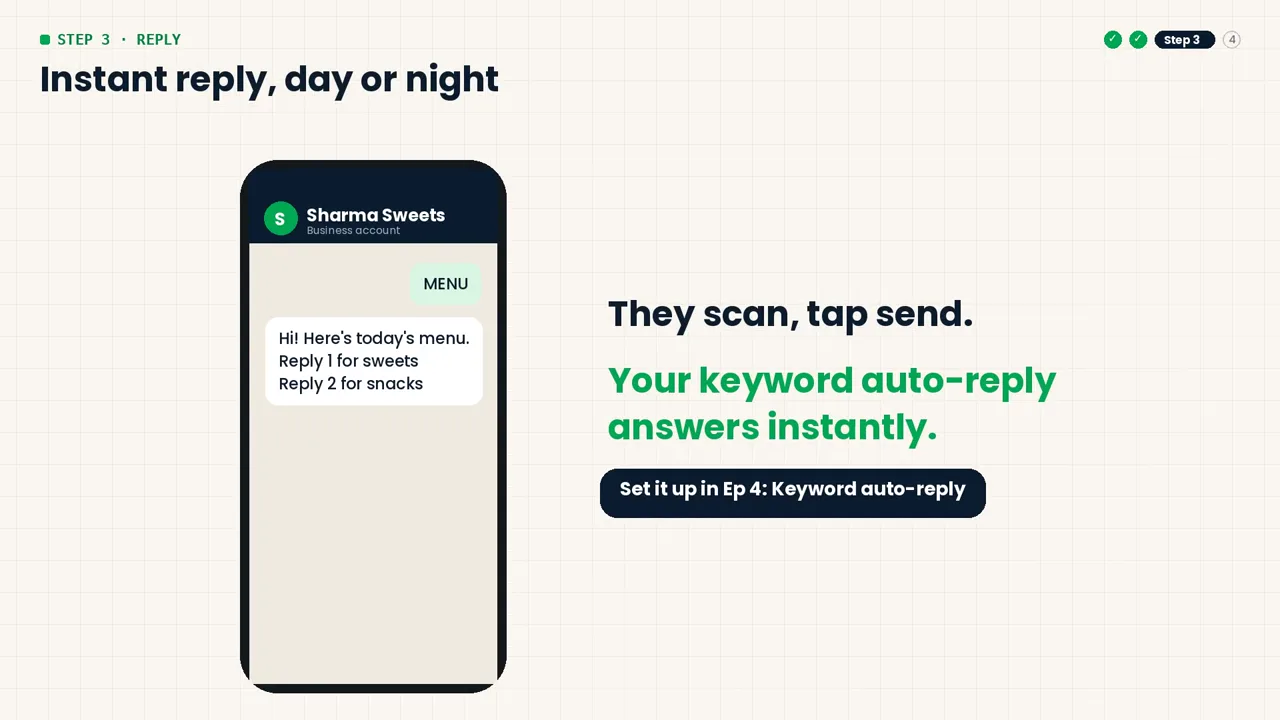
When a customer scans, WhatsApp opens with your keyword already typed. They tap send. Set up a keyword auto-reply for that keyword, and your menu, price list or offer goes out right away, even at midnight.
Step 4: Let the tag do the selling
Everyone who scans gets the door's tag. You can see it in Contacts.
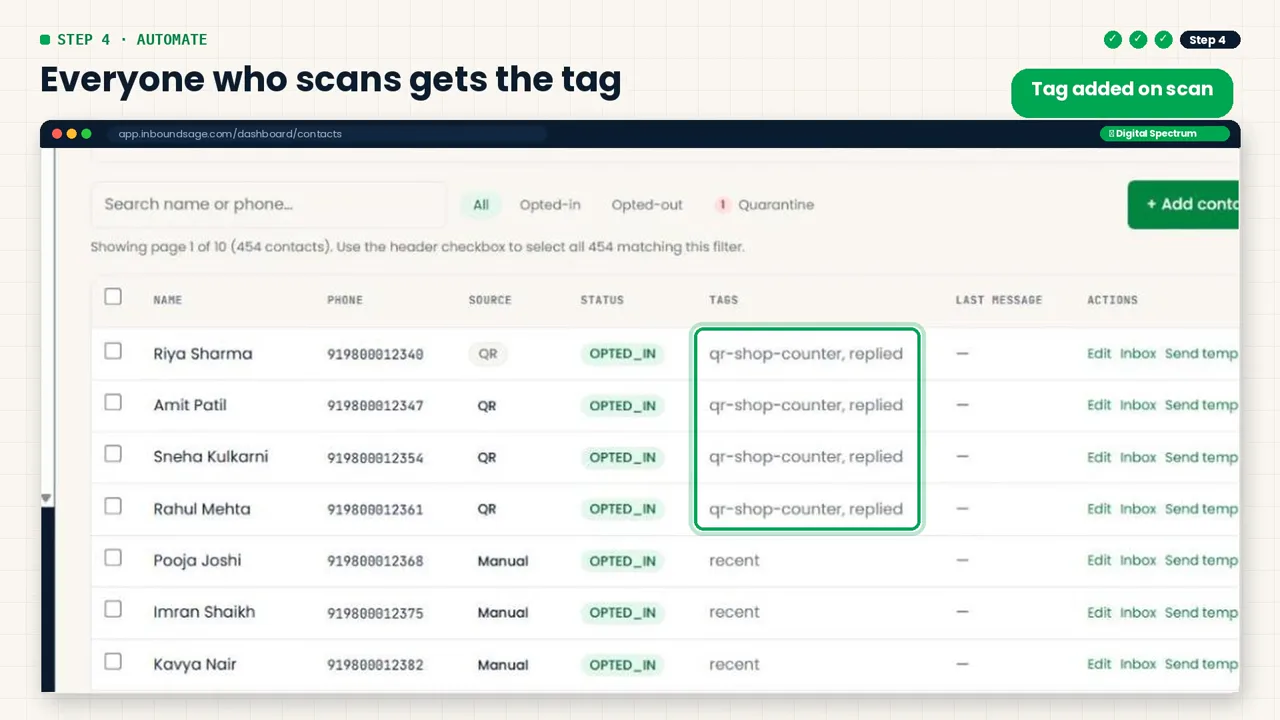
Now use that tag. In Automations, start a flow with the Tag Applied trigger and pick your door's tag. A simple flow that works for most shops:
- Today: a welcome message.
- Wait 1 day, then send an offer.
- Wait 7 days, then ask for a review.
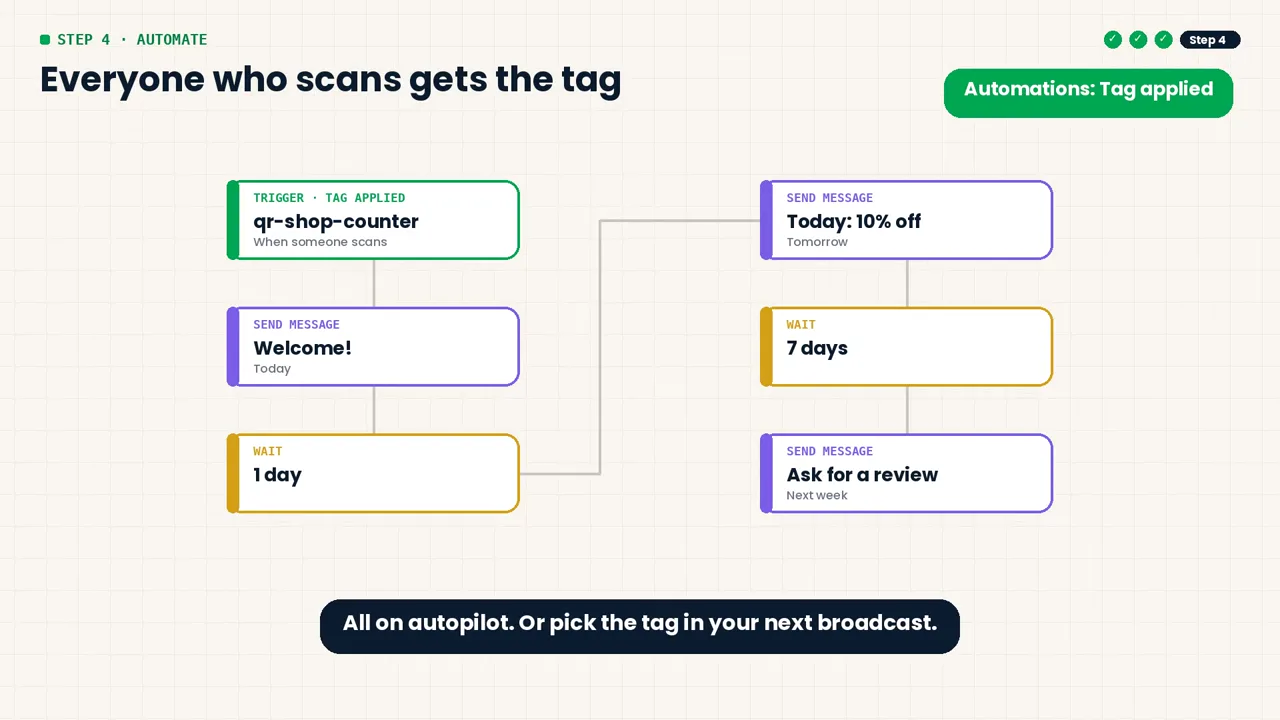
You can also pick the tag as your audience in your next broadcast, or build a segment like "scanned at the counter, never ordered".
Tip: one door per place
Make separate doors for your counter, your Instagram bio and your flyers. Each one gets its own tag, so you can see which place brings in customers and send each group a message that fits.
FAQ
Does the customer have to type anything?
No. Scanning opens WhatsApp with your keyword already filled in. They only tap send.
Can I change a door's tag later?
Yes. Click the tag on the door's card in Settings → QR & List-Building Doors and edit it. New scans get the new tag; contacts who already scanned keep the old one.
Is there a limit on tags per contact?
Yes, it depends on your plan: 10 tags per contact on Starter, 20 on Growth and 50 on Scale. You can remove old tags from a contact at any time to make room.
What if someone scans the same QR twice?
They stay one contact. The tag is added only once, so the Tag Applied automation does not start twice.
Try it on your own WhatsApp number
InboundSage is a Verified Meta Tech Provider platform for Indian businesses: broadcasts, segments, keyword auto-replies, appointment booking and a team inbox, on your own WhatsApp Business number. Set it up in an evening.