WhatsApp Tutorials
How to Send a WhatsApp Broadcast to Your Customers (Step by Step)
Send a WhatsApp broadcast with the Business API: pick a template, choose an opted-in audience, personalise with the customer's name, check the cost and test before sending. With a 90-second video walkthrough.
Padmesh Bhavsar · Founder, InboundSage · 4 November 2026 · 6 min read
A WhatsApp broadcast is one approved message sent to many customers at once, each receiving it as a normal one-to-one chat. Done properly it is the highest-response channel most Indian businesses have. Done carelessly it gets your number reported.
This guide walks through sending one in InboundSage, using a real example: a free webinar invite sent to contacts tagged engaged. The video above shows the same flow in 90 seconds.
Before you start, make sure the basics from 5 things to set up before your first WhatsApp campaign are done, especially an approved template.
Step 1: Create the broadcast
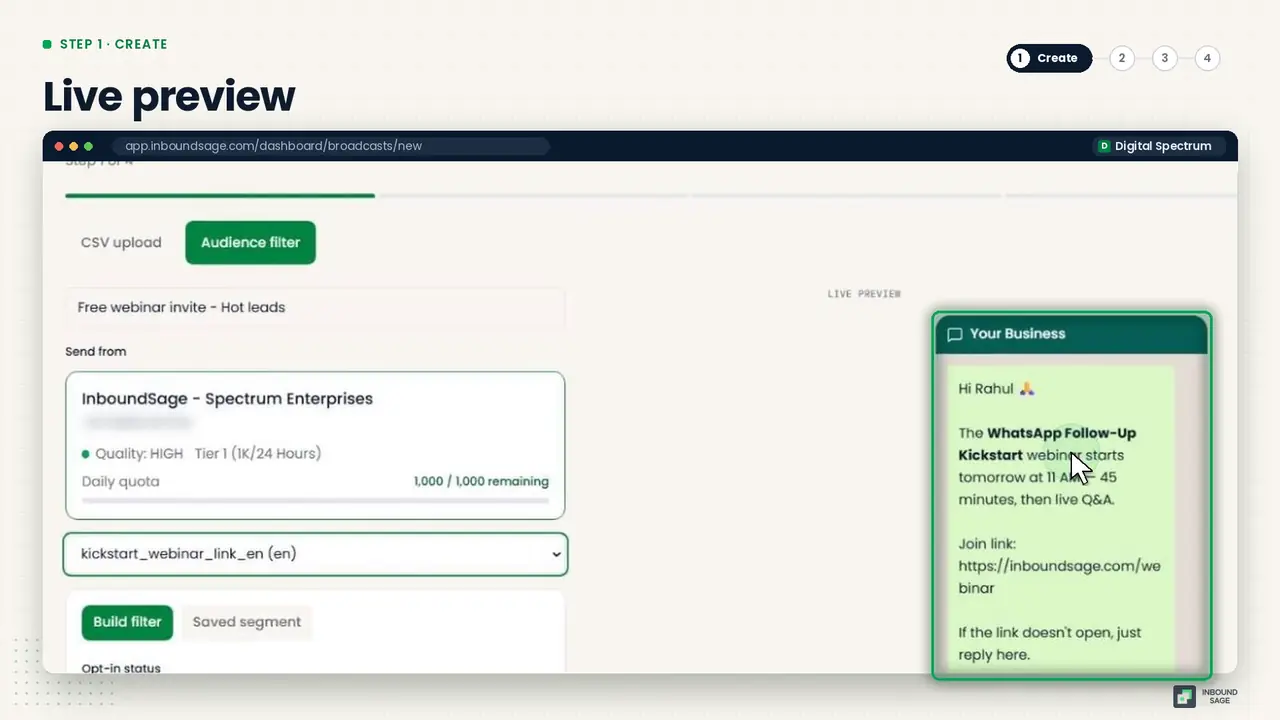
Go to Broadcasts → New broadcast and give it a name you will recognise later, like "Free webinar invite".
Check the sending number. Its quality rating and today's quota are shown right there, so you know before you start whether the number can take the volume.
Then pick an approved template. The live preview shows exactly what customers will see.
Step 2: Choose the audience
In Audience filter, keep Opted in selected. That one setting keeps you on the right side of WhatsApp's rules. Then narrow it with a tag, such as engaged, and click Preview audience to see how many contacts match. In our example, 43.
Want it to go out later? Untick Send now and choose a date and time.
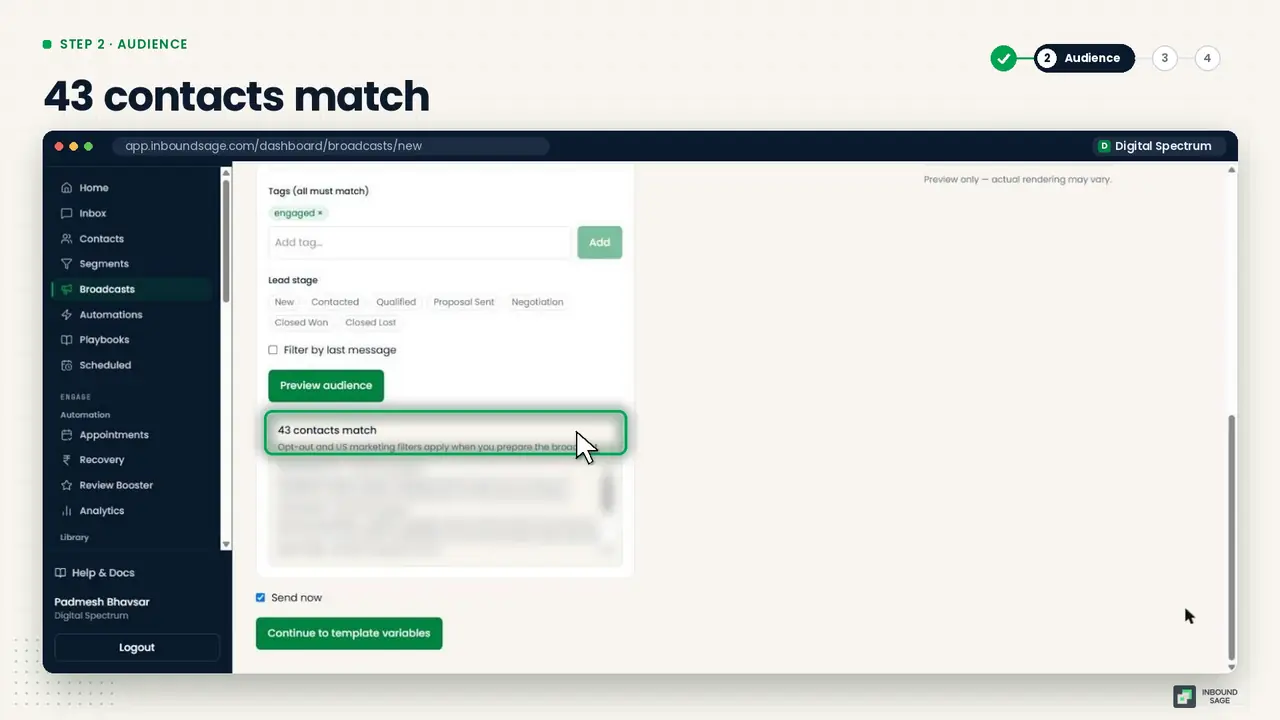
If you send to the same group often, save it as a segment instead of rebuilding the filter each time.
Step 3: Personalise the message
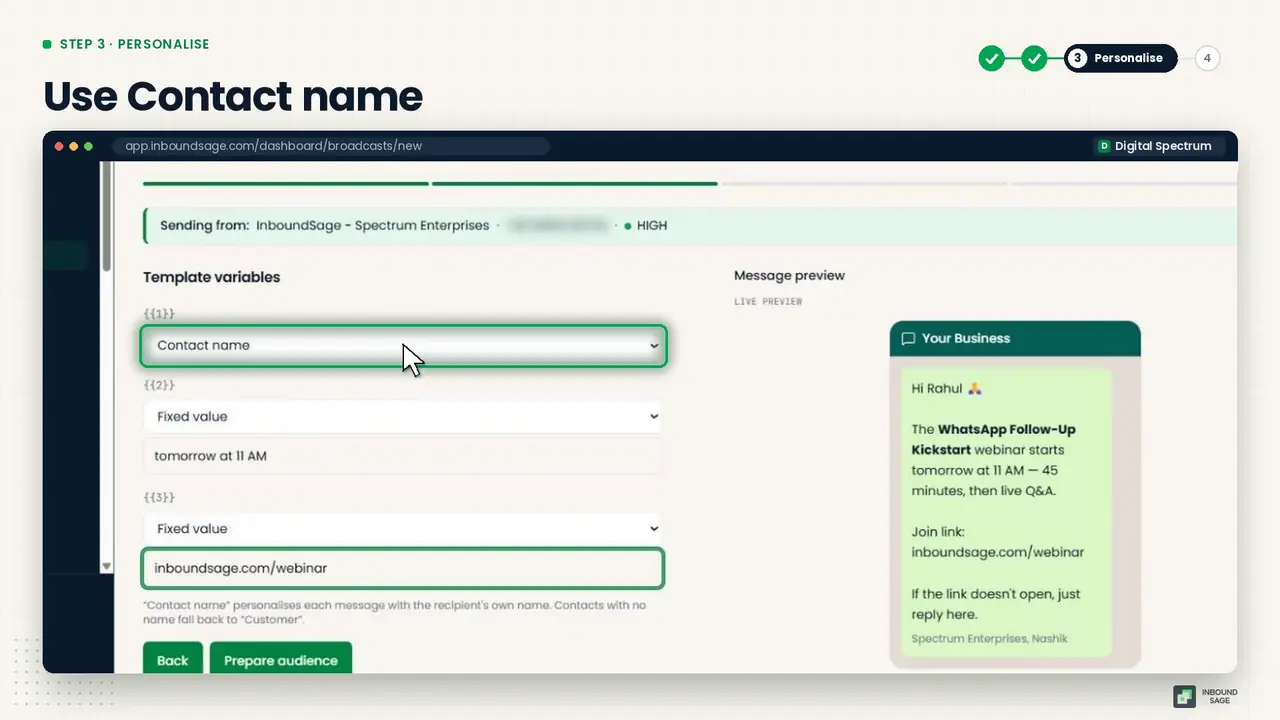
Click Continue and fill the template variables:
- Set the first variable to Contact name, so every message greets the customer by name.
- Set the rest to Fixed value for text that is the same for everyone, like the webinar date and link.
Messages that start with the customer's name read like a message from a person, not a blast.
Step 4: Review and send
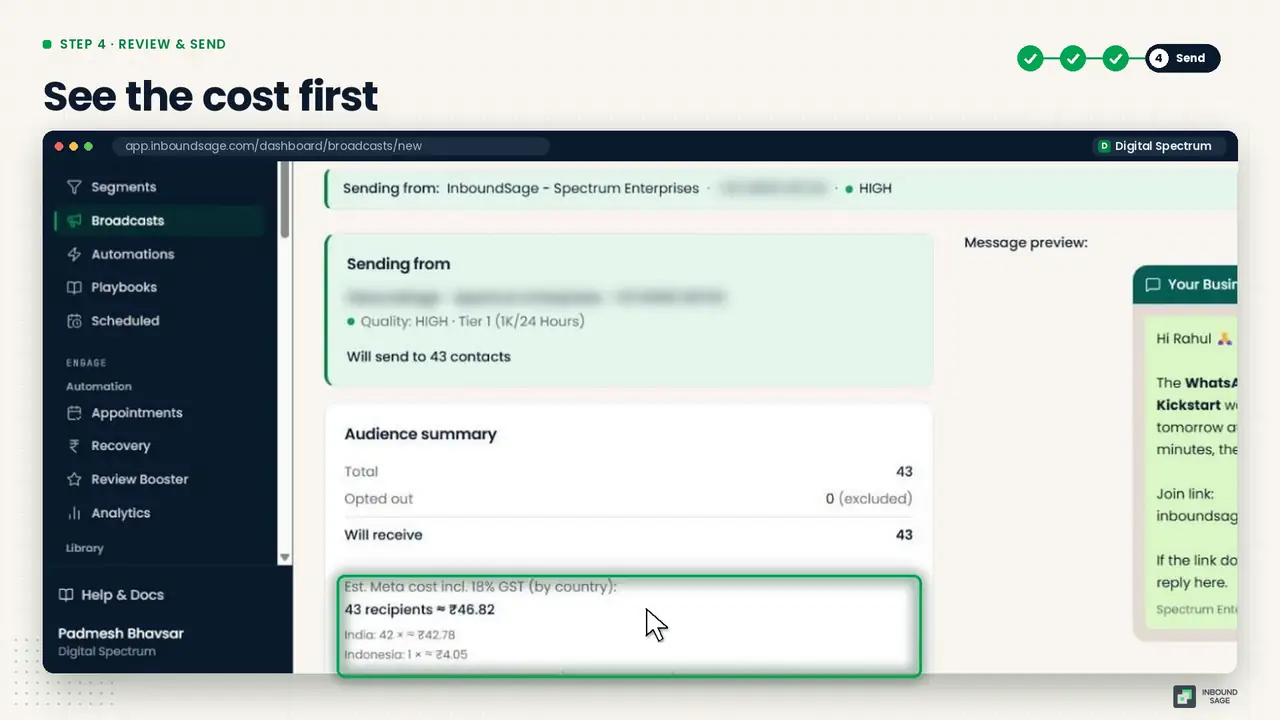
Click Prepare audience to see the final picture:
- the exact number of people who will receive it,
- opted-out contacts, excluded automatically,
- the estimated Meta cost, before you spend anything.
Send a test message to your own number first. Check the name fills in, the link works and nothing reads oddly. Then click Confirm & send.
Track the results
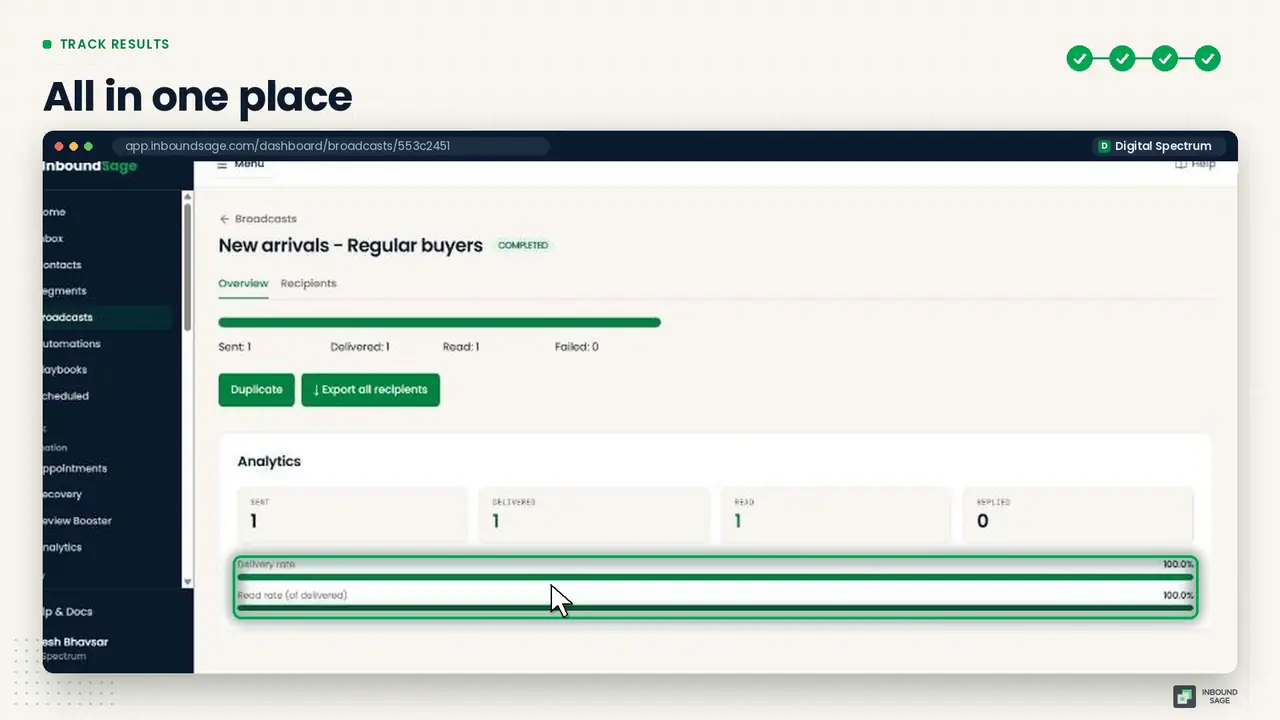
Open the broadcast to watch it live: sent, delivered, read and replied, all on one screen. Replies land in the team inbox, so answer them quickly. That is where the sales happen.
FAQ
What is the difference between a WhatsApp broadcast list and a Business API broadcast?
A broadcast list in the WhatsApp Business app only reaches people who saved your number and is limited to small lists. A Business API broadcast uses an approved template, reaches any opted-in contact, and gives you delivery and read tracking.
How many people can I send a broadcast to?
It depends on your number's messaging limit, which Meta raises as you send good-quality messages. InboundSage shows today's quota on the broadcast screen before you send.
Does every broadcast message cost money?
Meta charges per template message delivered, at a rate that depends on the category, such as Marketing or Utility. InboundSage shows the estimated cost before you confirm.
Can I schedule a WhatsApp broadcast?
Yes. Untick Send now in the audience step and pick a date and time.
Try it on your own WhatsApp number
InboundSage is a Verified Meta Tech Provider platform for Indian businesses: broadcasts, segments, keyword auto-replies, appointment booking and a team inbox, on your own WhatsApp Business number. Set it up in an evening.