WhatsApp Tutorials
WhatsApp Audience Segmentation: Send the Right Message to the Right People
Stop sending the same WhatsApp message to everyone. How to build reusable audience segments with tags, opt-in status and last-replied rules, check the live count, and send to a segment in one click.
Padmesh Bhavsar · Founder, InboundSage · 4 November 2026 · 5 min read
Sending the same WhatsApp message to your whole list is the fastest way to waste money and get your number reported. A festive offer means nothing to someone who enquired yesterday and has not bought yet. A "we miss you" message annoys someone who bought last week.
Segments fix that. A segment is a saved audience defined by rules, for example "opted in, tagged engaged, replied in the last 7 days". The members update on their own as contacts change, so you build it once and reuse it for every campaign. The video above builds one in about a minute.
Why segment at all?
- Lower cost. Every template message is charged. Fewer, better-targeted messages cost less.
- Higher response. A message that fits the reader gets read and answered.
- Safer number. Relevant messages get fewer blocks and reports, which protects your quality rating.
Step 1: Create a segment
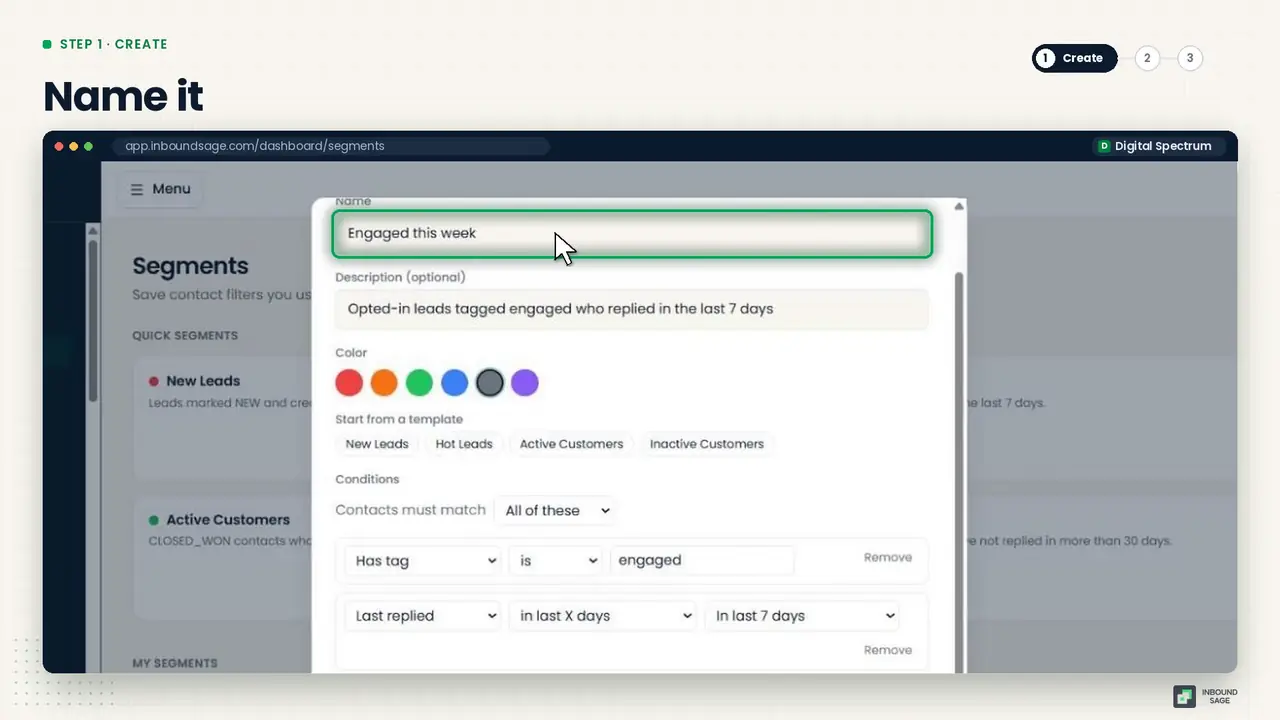
Go to Segments → New segment. Give it a clear name, like "Hot leads", and a short note on who belongs in it, so your team knows what it is for six months from now.
Short on time? Start from a ready-made template such as Hot Leads and create it in one click.
Step 2: Add your conditions
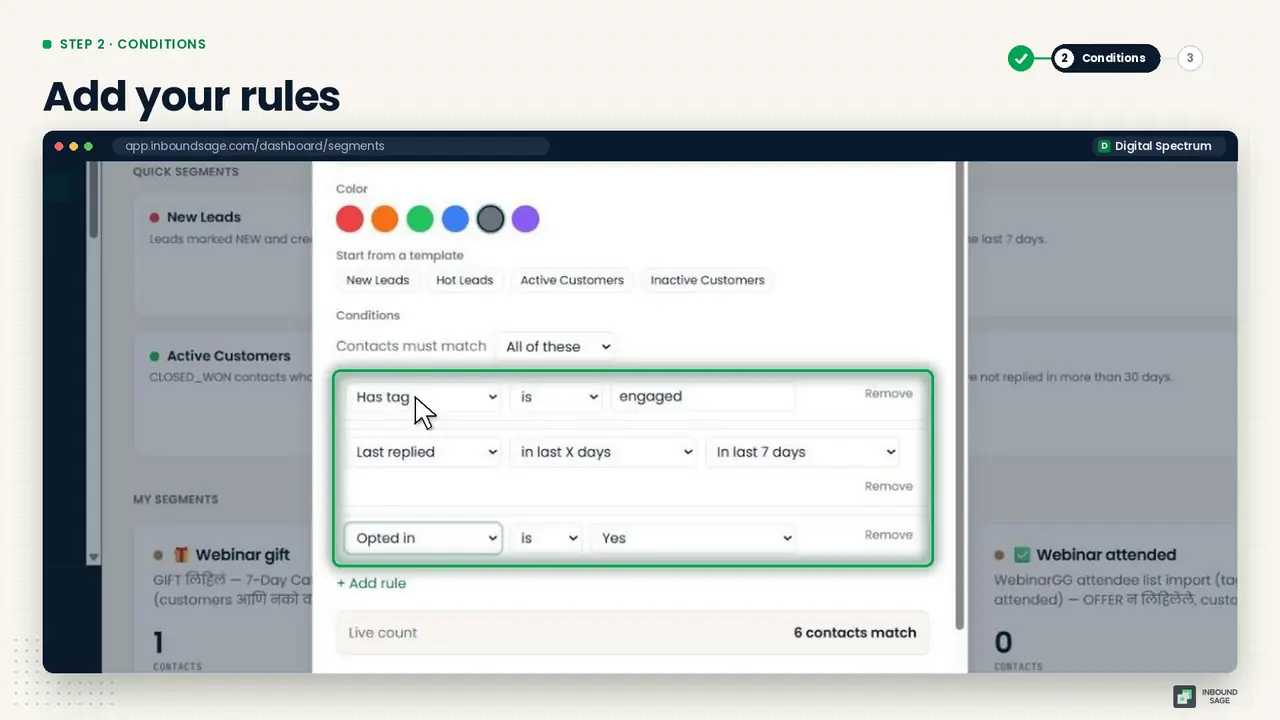
Choose how the rules combine:
- All of these: a contact must match every rule.
- Any of these: matching one rule is enough.
Then add rules. A good "hot leads" segment looks like this:
- Opted in is opted in
- Has tag is
engaged - Last replied in the last 7 days
The live count updates as you build, so you see exactly how many contacts match before you save. If the number looks wrong, the rules are wrong. Fix them now, not after the send.
Step 3: Save and reuse
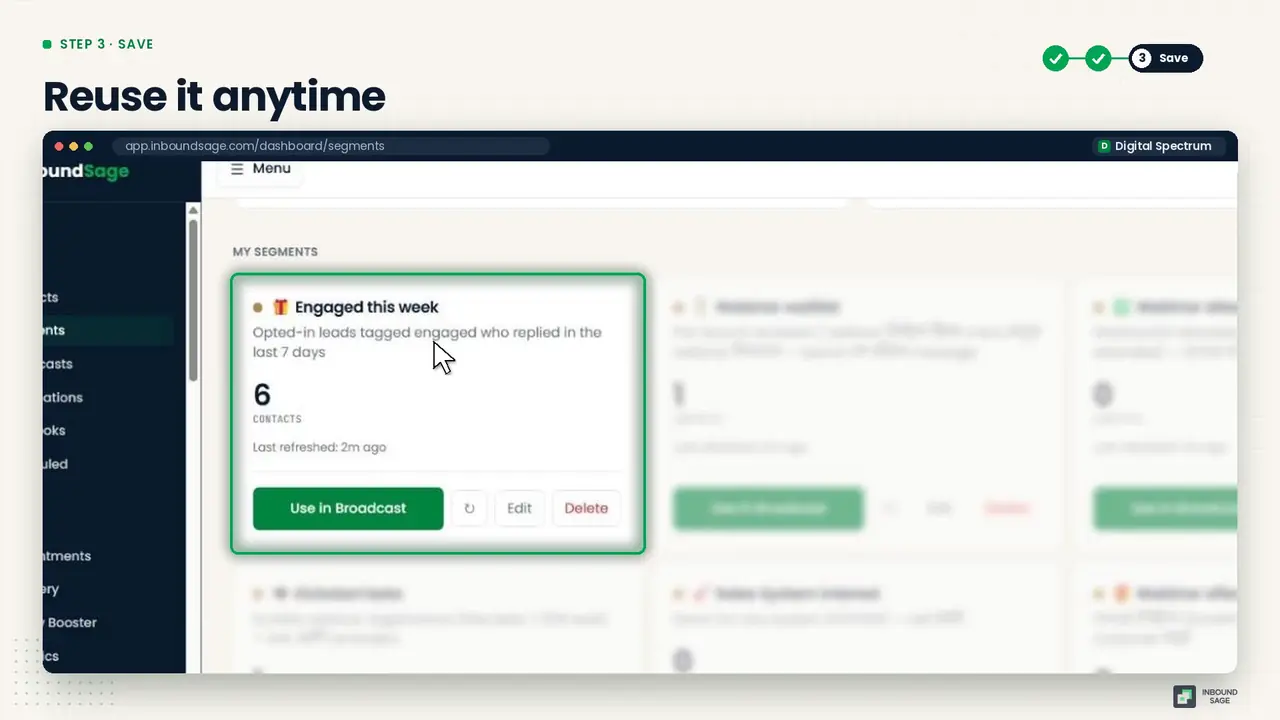
Click Save. The segment is now a reusable audience. Hit refresh on the segment card anytime to see the latest count.
Step 4: Use it in a broadcast
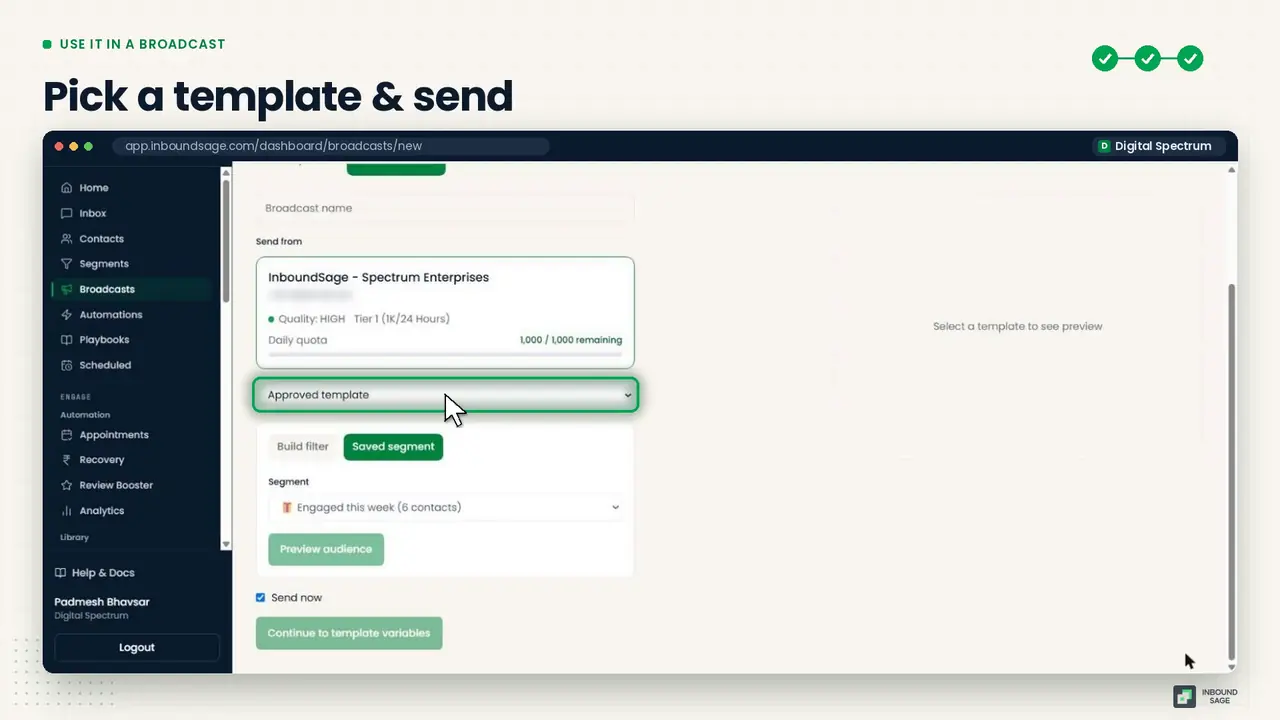
Click Use in Broadcast. A new broadcast opens with the segment already selected as the audience. Pick a template and send. The rest of the flow is in How to send a WhatsApp broadcast.
Segments worth building first
- Hot leads: engaged and replied recently. Send offers and follow-ups.
- New contacts: added in the last 30 days. Send a welcome or an introduction.
- Gone quiet: no reply in 90 days. Send a gentle win-back, once.
Segments are only as good as your tags, so set up auto-tag rules early. See 5 things to set up before your first WhatsApp campaign.
FAQ
What is the difference between a tag and a segment?
A tag is a label on a contact, like "engaged". A segment is a saved rule that can combine several tags and other conditions, like opt-in status and last reply date.
Do segments update automatically?
Yes. A segment is a rule, not a frozen list, so contacts join and leave it as their tags and activity change. Refresh the count to see the latest number.
Should I always include "Opted in" as a condition?
Yes, for marketing messages. It keeps people who opted out off every campaign built from that segment.
Try it on your own WhatsApp number
InboundSage is a Verified Meta Tech Provider platform for Indian businesses: broadcasts, segments, keyword auto-replies, appointment booking and a team inbox, on your own WhatsApp Business number. Set it up in an evening.