WhatsApp Tutorials
5 Things to Set Up Before Your First WhatsApp Campaign
A practical checklist for Indian businesses on the WhatsApp Business API: connect your number, set up auto-replies, tag contacts, get a template approved and import a clean contact list. With a 2-minute video walkthrough.
Padmesh Bhavsar · Founder, InboundSage · 4 November 2026 · 6 min read
Most first WhatsApp campaigns go wrong before the send button. The template is still pending, the contact list has numbers that never opted in, or nobody is ready to answer the replies. The broadcast goes out, a few people block the number, and the quality rating drops.
Five pieces of setup prevent almost all of that. You do them once, and every campaign after the first one is just "pick a template, pick an audience, send". The video above shows all five inside InboundSage in two and a half minutes. This post is the written version, with the reasons behind each step.
1. Check your WhatsApp connection and business profile
Open Settings → WhatsApp Connection. You should see your connected number, your business profile and a quality rating. Green means Meta is happy with how your number is being used and you are clear to send.
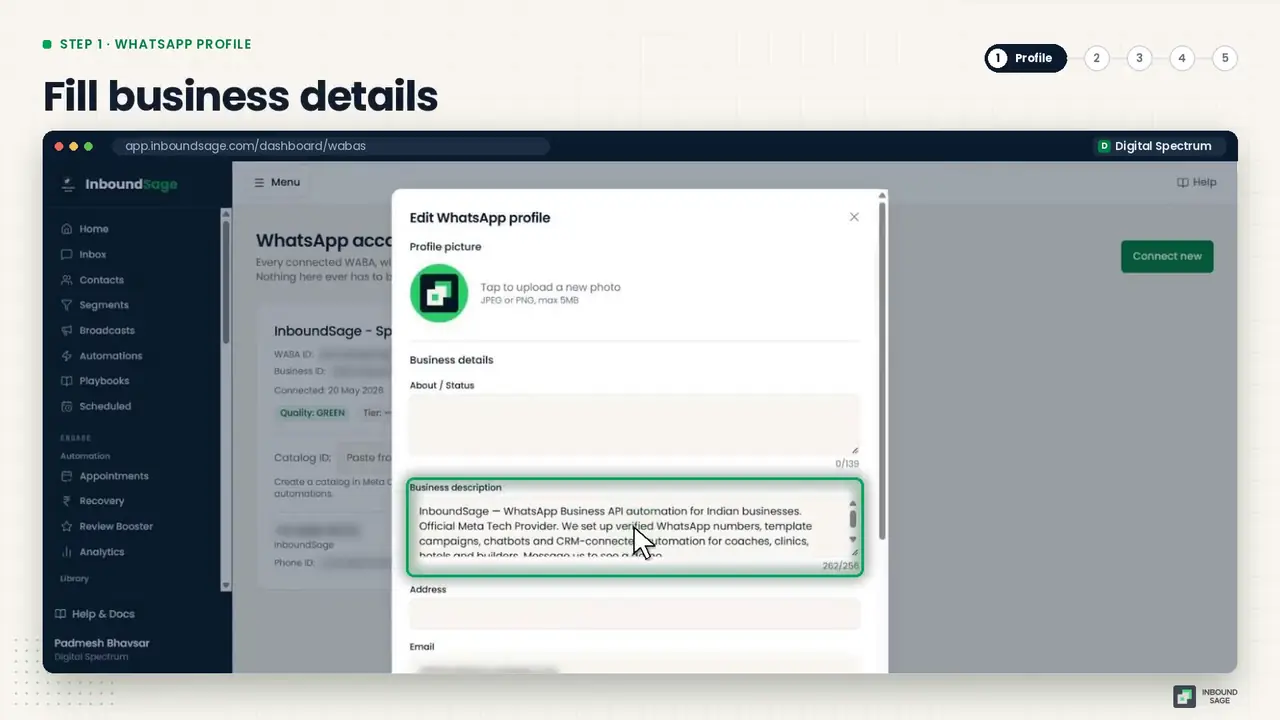
While you are there, fill the business profile completely: logo, About line, description, address, email, website and category. This is what a customer sees when they tap your name, and an empty profile looks like spam.
If no number is connected yet, click Connect new and finish Meta's signup. It takes about ten minutes and you keep full ownership of the number.
2. Turn on automatic replies
A broadcast creates replies, usually within minutes, often at night. If nobody answers, you lose the lead you just paid to reach.
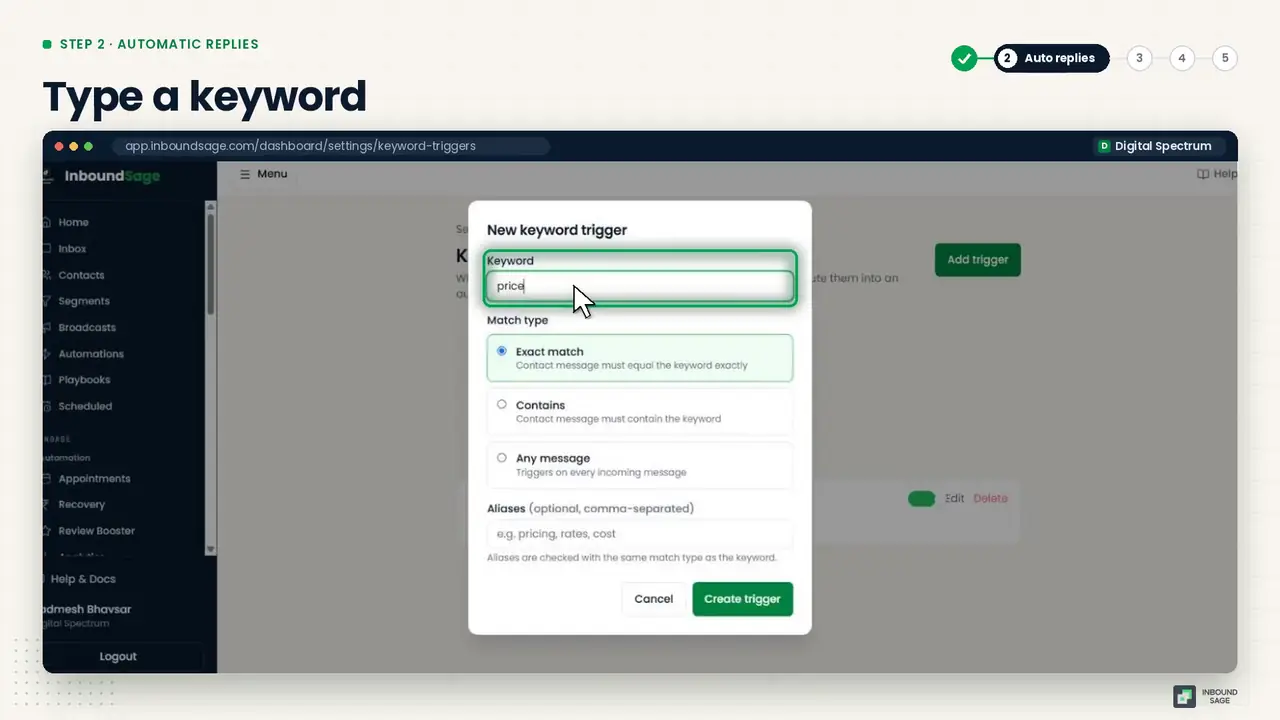
- Keyword Triggers answer common words instantly: "price", "location", "timing". We cover these in detail in How to auto-reply on WhatsApp with keyword triggers.
- Quick Replies are saved answers your team sends from the Inbox by typing
/. One click instead of retyping the same paragraph.
3. Organise contacts with tags and custom fields
Tags tell you who is who: a new lead, a regular customer, someone interested in offers. Auto-tag rules apply tags on their own when a contact messages you, so the list organises itself.
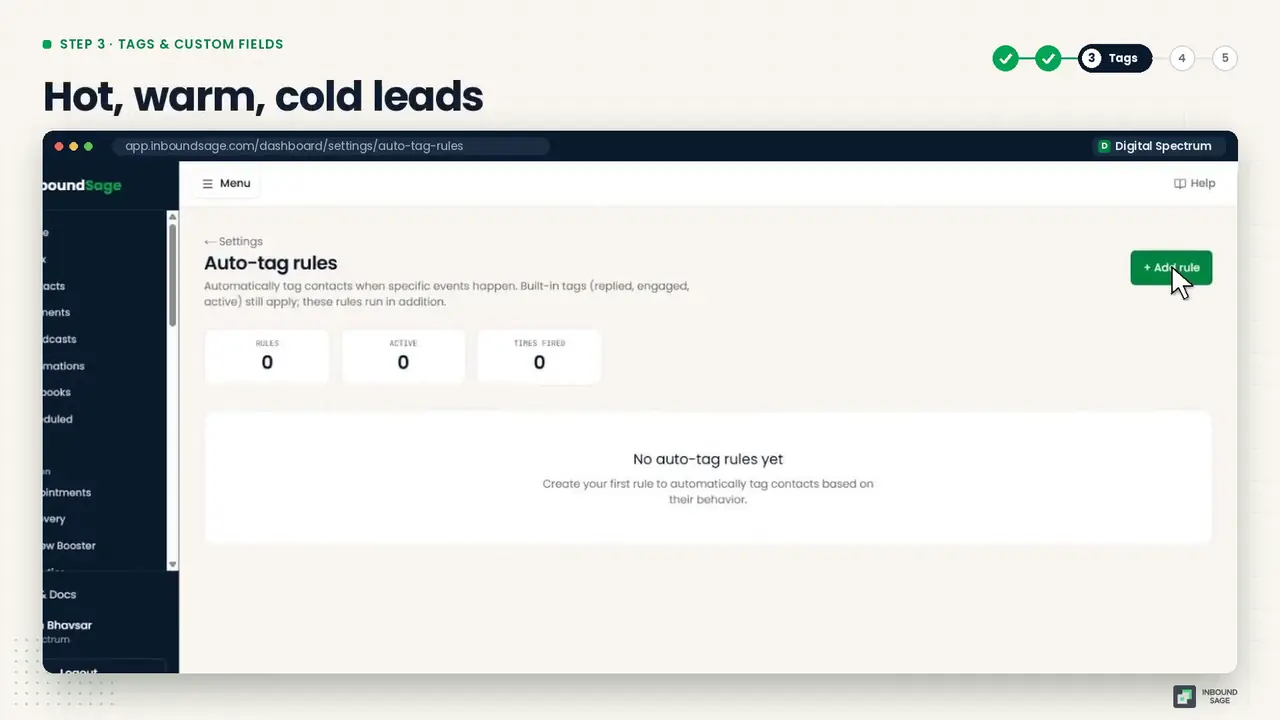
Custom fields hold extra details such as city, business type or budget. Tags and fields are what you filter on later, so each group gets the message that fits it instead of everyone getting everything. That is the whole idea behind audience segments.
4. Get a message template approved
WhatsApp only lets a business start a conversation with a pre-approved template. Go to Templates → Create template, pick a category (Marketing or Utility), write the message and add variables such as the customer's name. The live preview shows exactly what the customer will see.
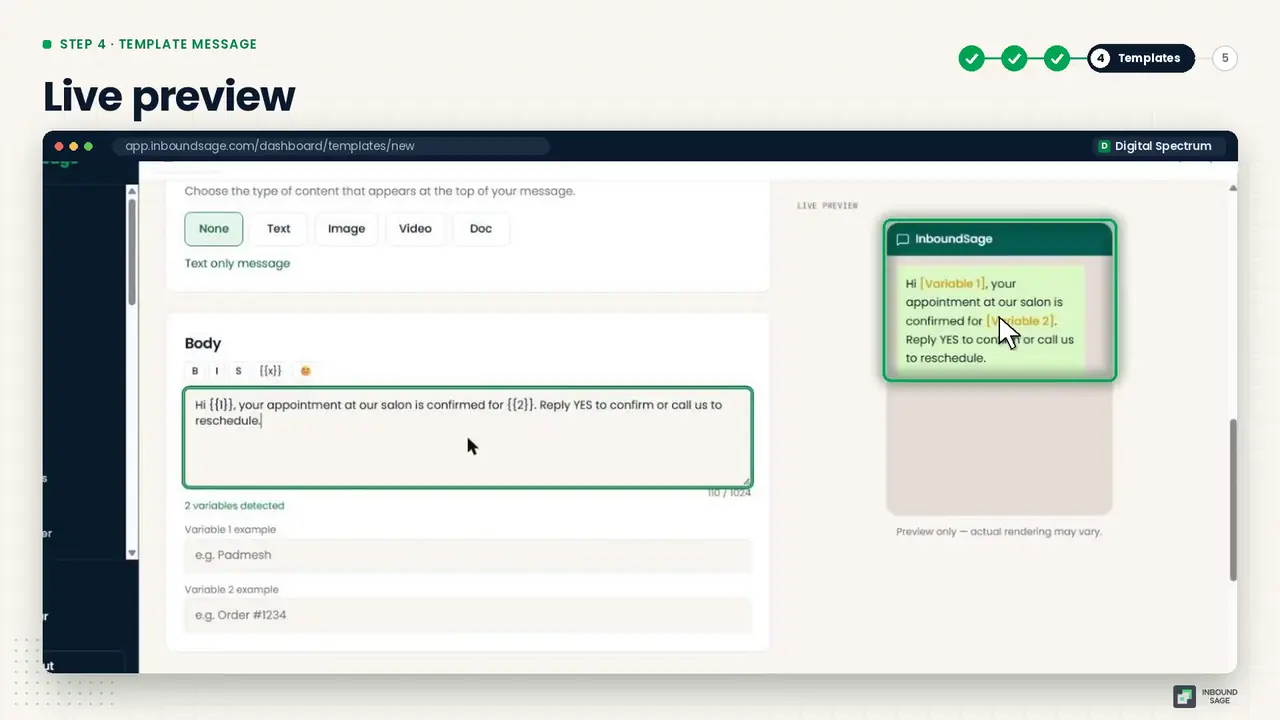
Submit it to Meta. Approval usually comes within minutes. Write it the way you would talk to a customer, avoid all-caps and aggressive offers, and make the purpose of the message obvious.
5. Import a clean contact list
Go to Contacts → Import → Import CSV and upload a file with phone, name and tags. There is a sample file to copy the format from.
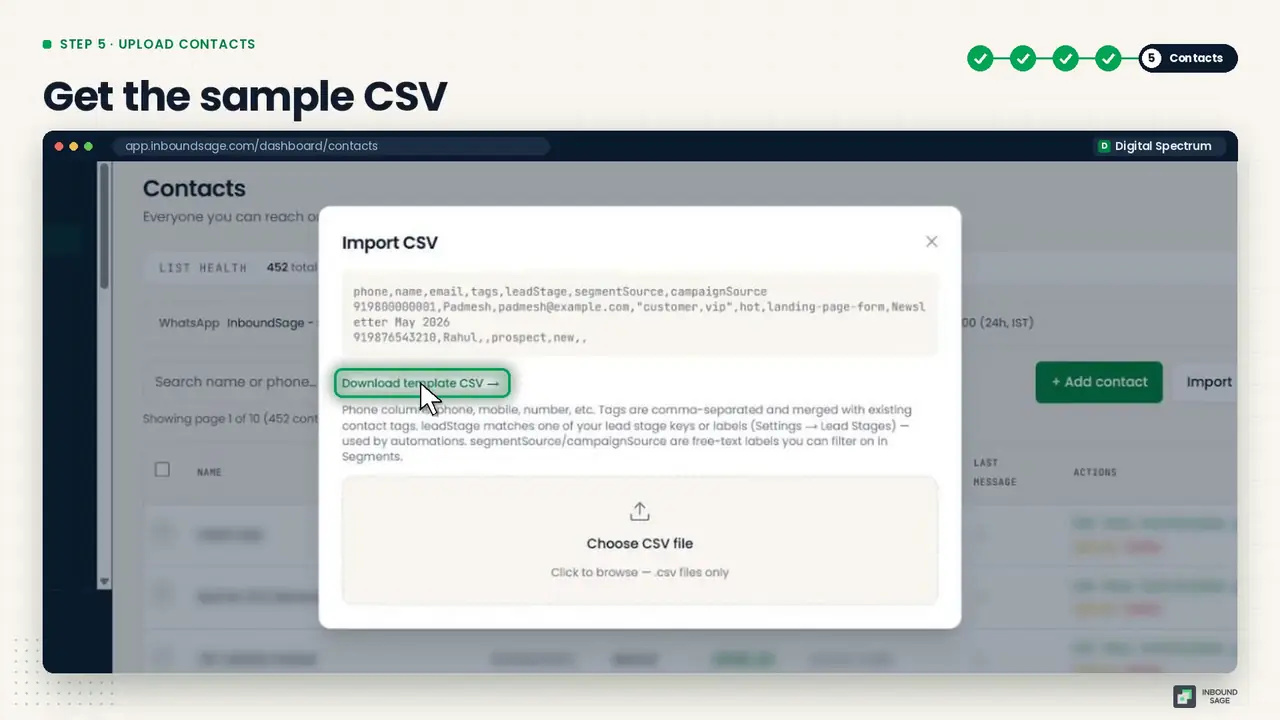
Only import people who have agreed to hear from you on WhatsApp. This matters more than anything else on this list: messages to people who did not expect them get reported, and reports are what pull your quality rating and daily limit down.
You are ready
That is the setup. Your number is connected, replies are covered, contacts are organised, a template is approved and your list is clean. Next: send your first WhatsApp broadcast, step by step.
FAQ
Do I need the WhatsApp Business API, or is the WhatsApp Business app enough?
The app is fine for chatting one-to-one. For campaigns to hundreds of customers, automatic replies, a shared team inbox and delivery tracking, you need the API, which is what InboundSage connects to.
How long does template approval take?
Usually a few minutes, sometimes longer. Plan your first template a day before the campaign so a slow review does not delay it.
Can I import contacts who have never messaged me?
You can, if they have agreed to receive WhatsApp messages from your business, for example through a form, a bill or an in-store sign-up. Do not import bought or scraped lists.
What is the quality rating?
Meta's score for how customers react to your messages. Blocks and reports lower it. A low rating can reduce how many people you can message per day.
Try it on your own WhatsApp number
InboundSage is a Verified Meta Tech Provider platform for Indian businesses: broadcasts, segments, keyword auto-replies, appointment booking and a team inbox, on your own WhatsApp Business number. Set it up in an evening.